Table of Contents
Pending Explanations
On the Pending Tab within the left taskbar:
- The yellow circle shows the number of Pending Labs.
- The blue circle, if shown, shows the number of those labs with uploaded results or results entered.

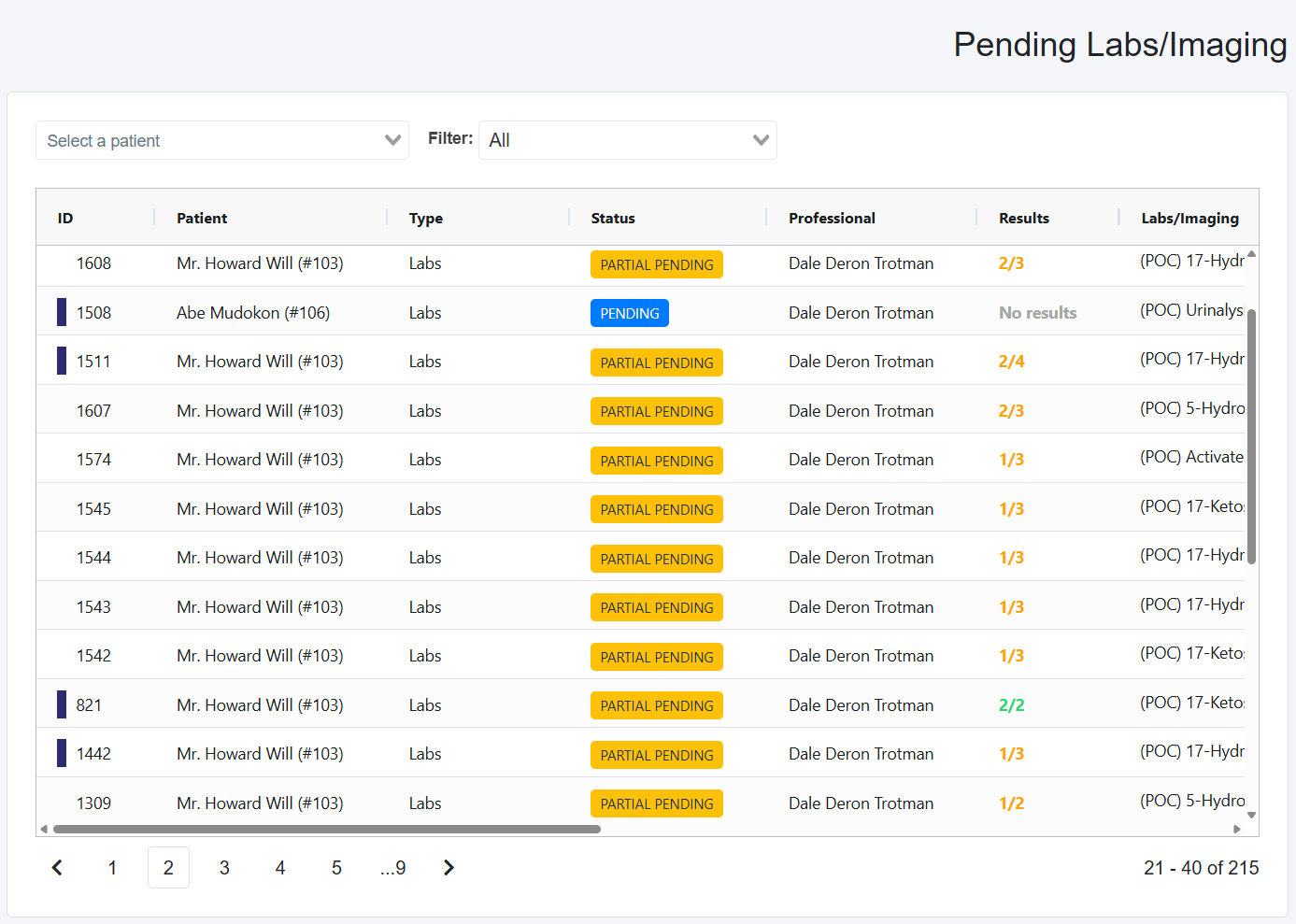
Pending Page ID and Status Columns:
- In the ID column, you may see a rectangular, dark blue icon that means results were uploaded for that specific lab by another staff member; however, the lab now needs to be finalized.
- In the Status column, labs/imaging will either be:
- Partial Pending- One or more labs or imaging tests in the order have been finalized, but not all.
- Pending- No lab or imaging test in this order has been finalized
On the Pending page, you can:
- Use the dropdown to search by patient
- Filter By
- All
- With Results
- Once the Result Date is entered, it will fall in this category even if results are not uploaded for some reason, or only the lab report was uploaded
- Without Results
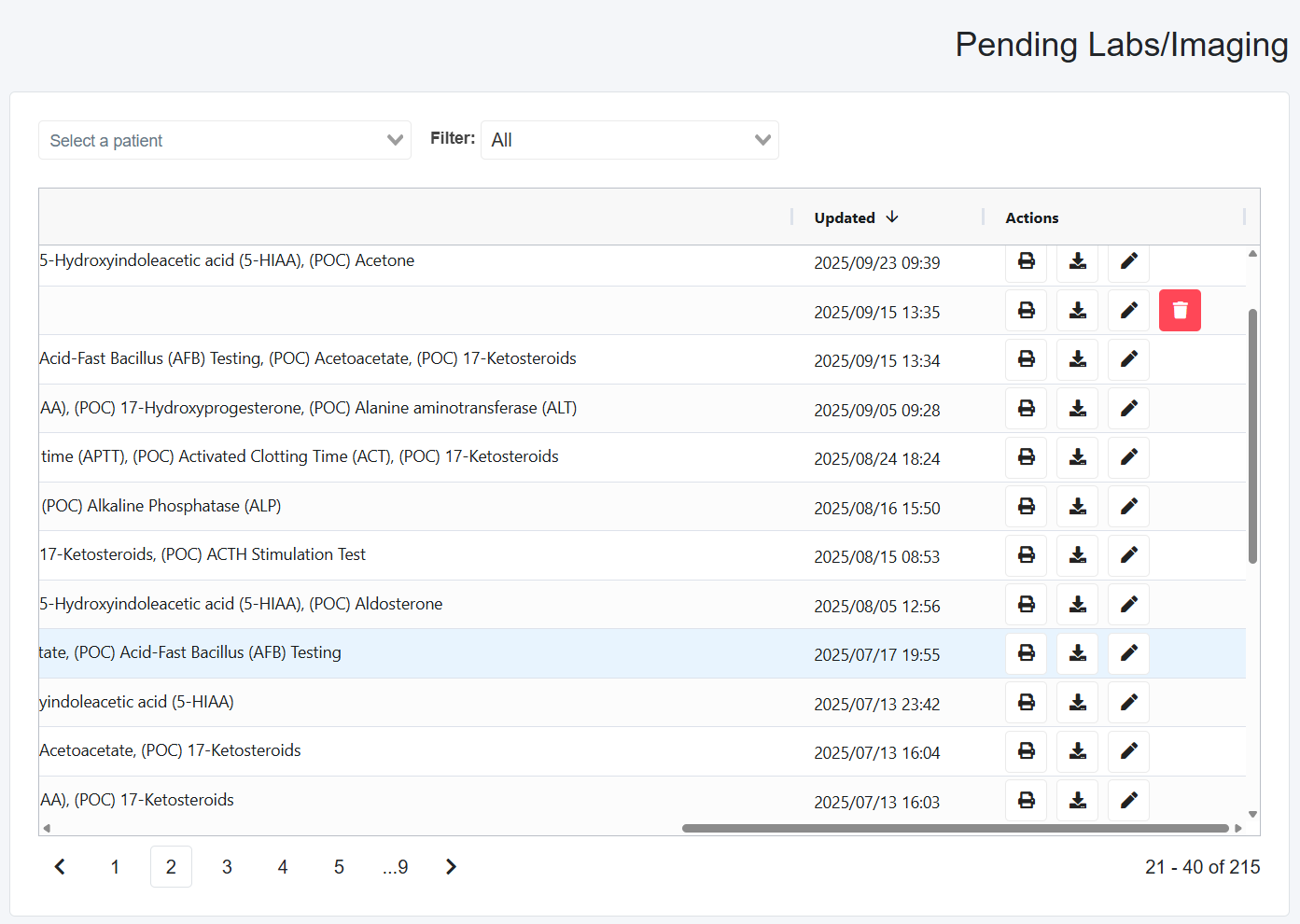
- In the Actions column, you can
- Print the order so the patient can present it at the lab for testing
- Download,
- Edit (update) a specific lab, or
- Delete (only if still in Pending)
Entering Results
Results can be entered by the creator of the lab order (medical professional) or another staff member (lab tech or administrative). However, what can be entered and finalized varies between the three.
Please keep in mind: If you view a patient's Labs/Imaging from their Medical Profile or Consultation note, any medical professional can finalize any lab even if they did not create it. However, from the Pending Page, Medical Professionals will only see the Pending/Partially Pending tests they created. In contrast, Diagnostic Specialists and Administrative staff will see all Pending/Partially Pending Tests for all Medical Professionals within their List.
Medical Professionals Entering Results from Pending Page
- Look for the Order you want to update, scroll to the right of the table, and select the edit (You will only see your Pending/Partial Pending orders)
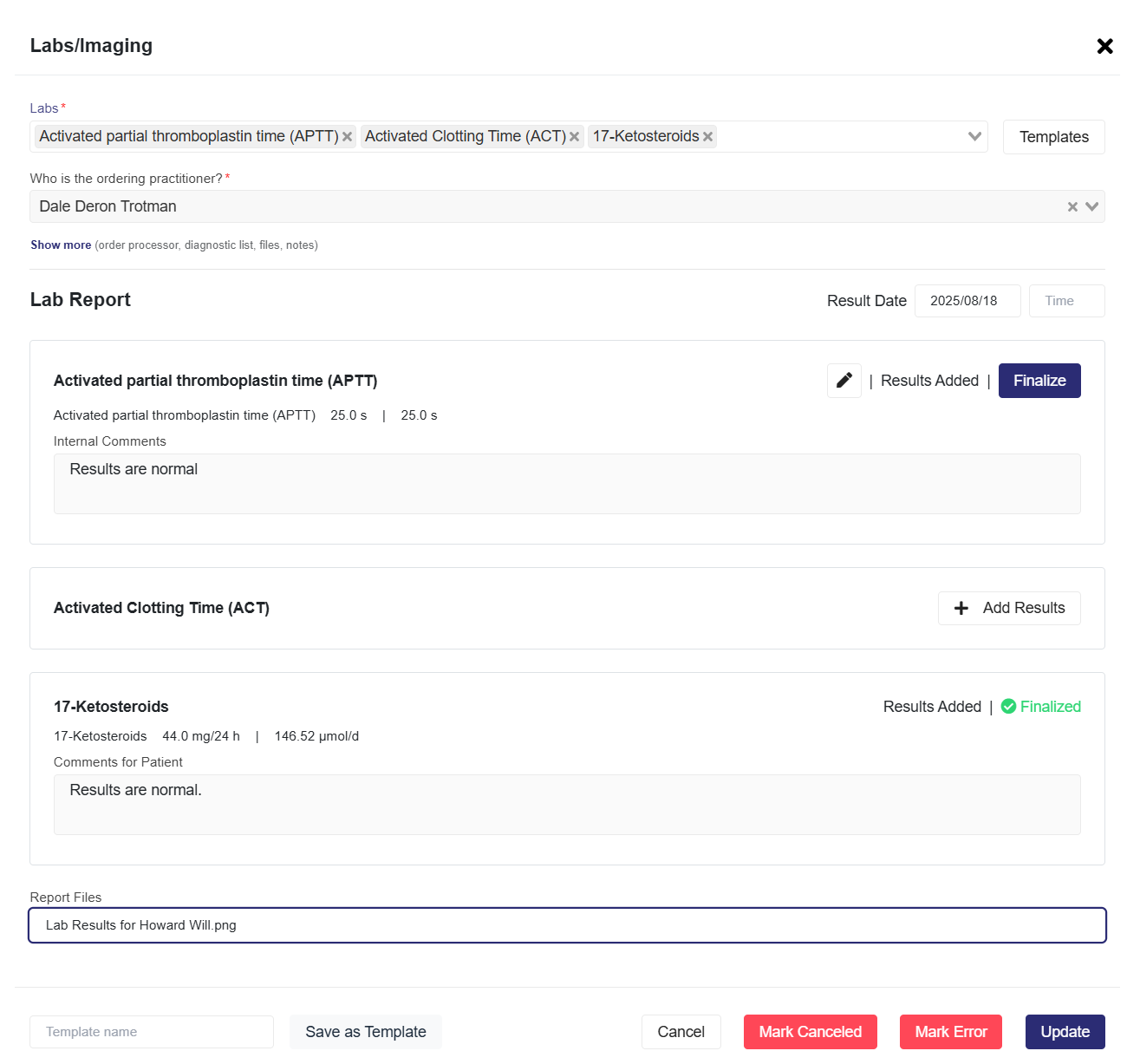
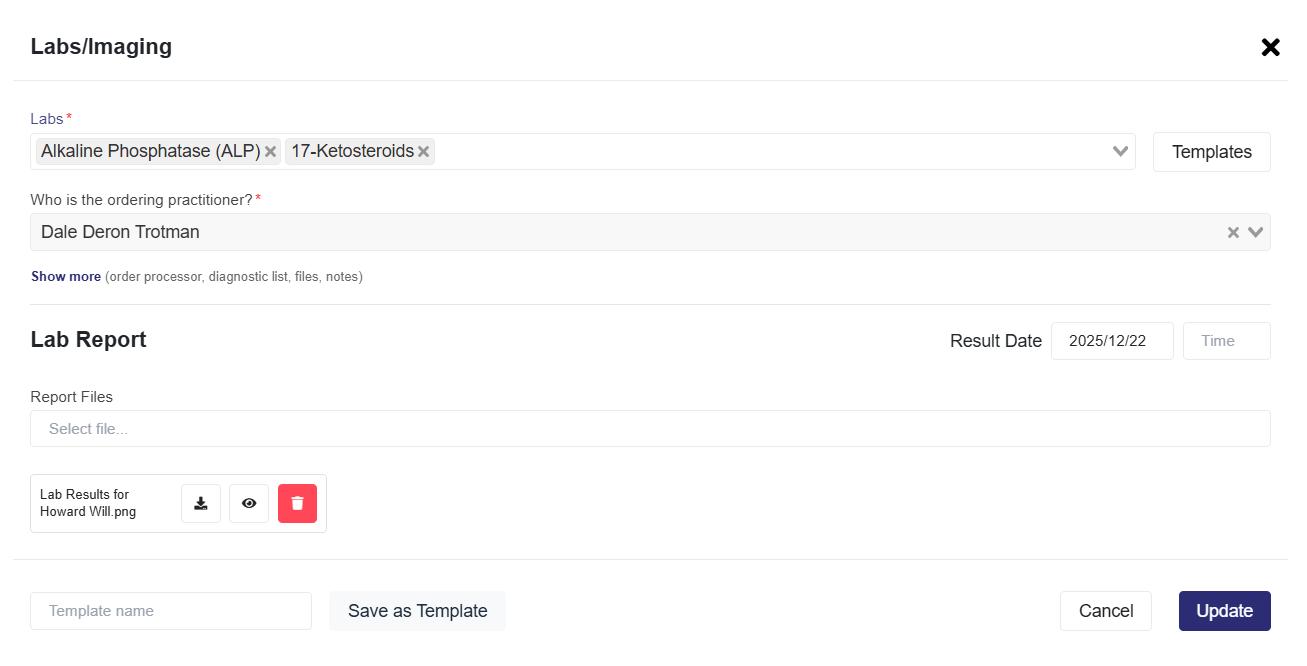
- A pop-up will appear, and in the Lab Report section, you will:
- Enter the Result Date. Result Time is optional.
- Select Update, which loads the items in the order.
- Enter the results for all labs in order by selecting the + Add Results (Partial Pending orders will already have some orders finalized)
- After selecting this button, enter the Internal Comments related to the results.
- Comments for Patients are not yet available.
- Select Save and Mark as Added to save that specific test in the order.
- This will revert to the previous page, where, on that order, you will see the information you entered, which you can edit before selecting the Finalize button for that specific test to make the results final
- Enter the Result Date. Result Time is optional.
- Repeat 2. For all other tests, you should upload the results and finalize them.
- If you have a digital copy of the lab results, you can upload it in the Report Files section at the bottom.
- All orders that have been fully finalized (i.e., all items in the order have been finalized) will now be visible on the Finalized page, accessible by clicking the Finalized tab, which is part of the Pending|Finalized toggle located in the top right-hand corner.
Lab Tech Entering Results from Pending Page
- Look for the Order you want to update, scroll to the right of the table, and select the edit (You will only see your Pending/Partial Pending orders)
- A pop-up will appear, and in the Lab Report section, you will:
- Enter the Result Date. Result Time is optional.
- Select Update, which loads the items in the order.
- Enter the results for all labs in order by selecting the + Add Results (Partial Pending orders will already have some orders finalized)
- After selecting this button, enter the Internal Comments related to the results.
- Comments for Patients are not yet available.
- Select Save and Mark as Added to save that specific test in the order.
- This will revert to the previous page, where, on that order, you will see the information you enter, which you can edit before selecting the Finalize button for that specific test to make the results final
- Enter the Result Date. Result Time is optional.
- Repeat 2. For all other tests, you should upload the results and finalize them.
- If you have a digital copy of the lab results, you can upload it in the Report Files section at the bottom.
Administrative Entering Results from the Pending Page
- Look for the Order you want to update, scroll to the right of the table, and select the edit (You will see Pending/Partial Pending orders created by all medical professionals)
- A pop-up will appear, and in the Lab Report section, you will:
- Upload the lab report so the medical professional can finalize the order.
- The Administrative user cannot enter results from the lab report for items in the order.
Saving an Order as Template
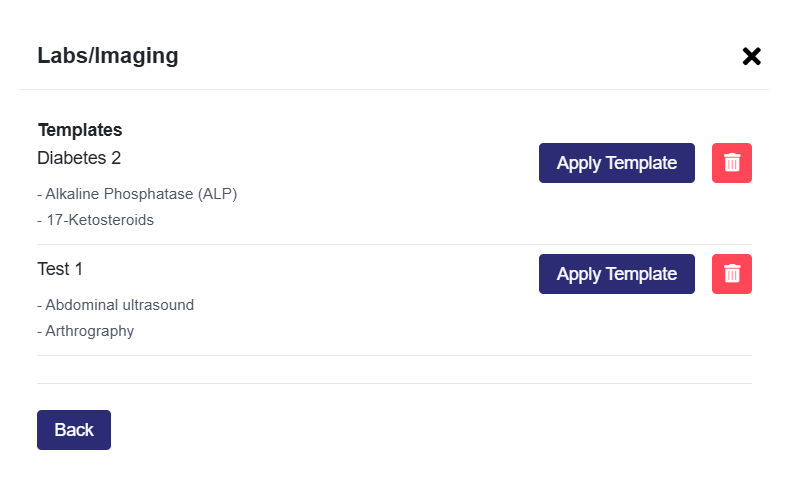
This is useful when you create the same order for specific types of patients, and you dont want to recreate it from scratch.
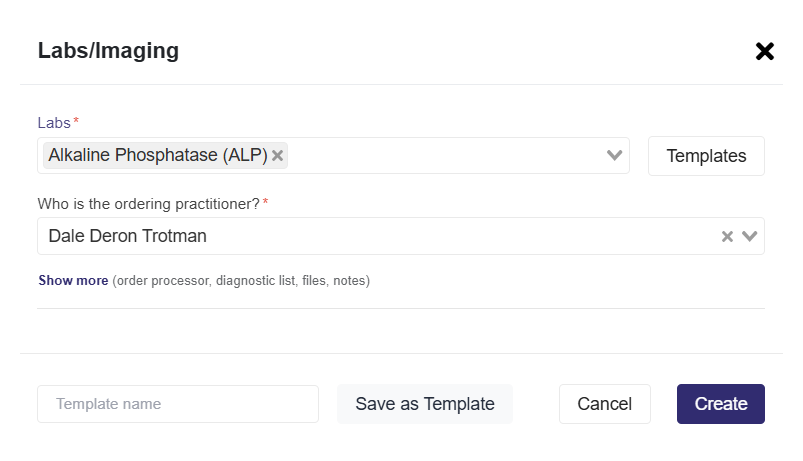
- Enter either the Labs or Studies/Imaging order you want to create in the selection dropdown.
- A template section will load in the bottom-left corner of the pop-up.
- Enter a Template name in the text box, then select Save as Template.
Selecting an Order Template
- Select the Templates button next to the Lab, Imaging, and Studies dropdown
- Choose the template you want to use and select the Apply Templates button
- Users can also delete templates here.