Unfinished

Updated:

Table of Contents

Unfinished Explanations

On the Unfinished page, you can:

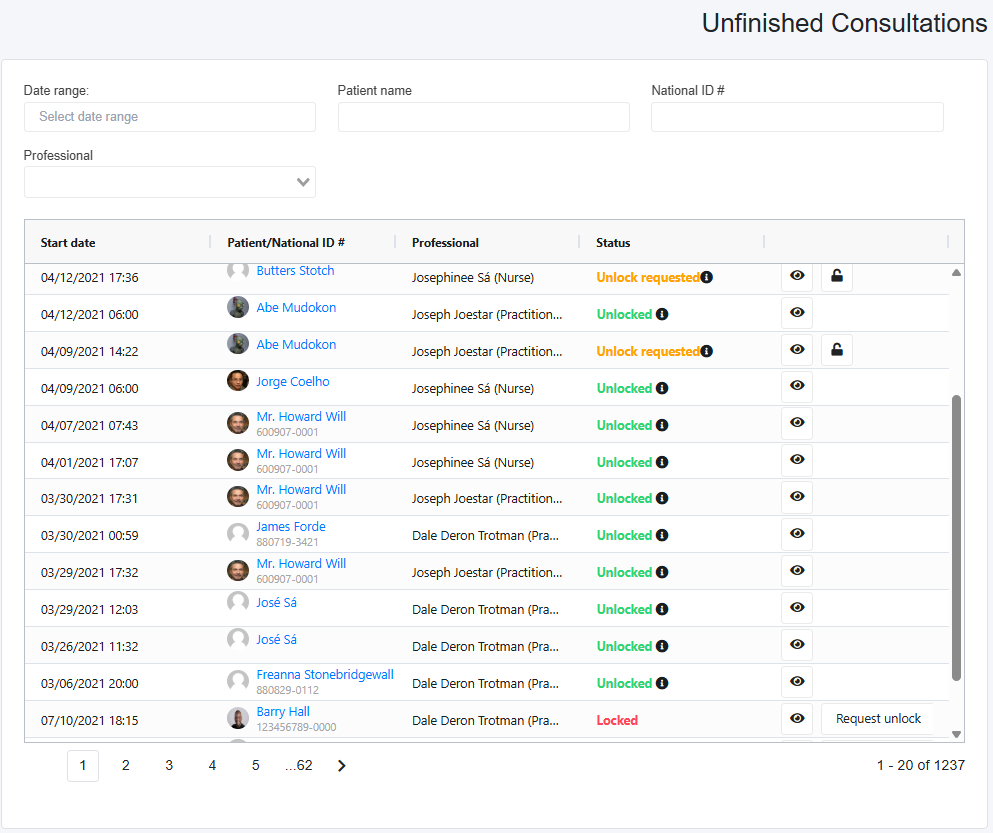
  • Search for an unfinished consultation note using a combination of the various search options above the table.
  • The Start Date is the date of the Consultation Note
  • Medical Professionals who are not Clinic Admins or Clinic Admins Plus will only see their unfinished notes in their table.

On the Pending Tab within the left taskbar:

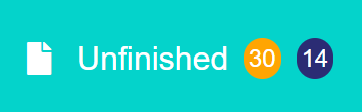
  • The yellow circle with a number highlights the number of unfinished consultation notes
  • The blue circle with a number highlights the number of unfinished consultation notes that have an unlock request.
Steps to Unlock a Note

Please note: To view the unfinished note, select the eye icon to review.

  1. Locked – Notes are locked. A Clinic Admin or Clinic Admin Plus can request an unlock by selecting Request Unlock and providing a reason.

  2. Unlock Requested – An unlock request has been submitted. The Clinic Admin or Clinic Admin Plus must review the request and decide whether to approve it.

  3. Unlocked – The unlock request was approved. The medical professional can now update the note.

Additional Rules

  • Clinic Admins and Clinic Admin Plus can request, provide reasons, and unlock another professional’s notes.

  • Administrative users may request an unlock, but approval must come from a Clinic Admin or Clinic Admin Plus before the responsible medical professional can complete the note.

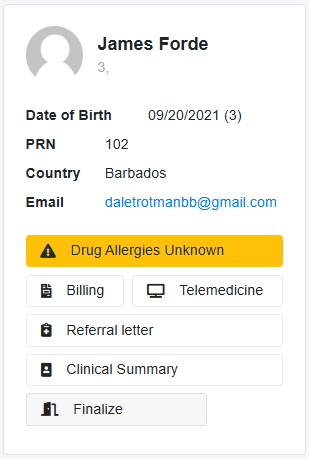
Finalizing an Unfinished Note

  1. Select the eye icon in the Actions column to the left of the Unlocked
  2. This loads the unlock consultation note for the responsible professional to make any necessary changes. When finished, select the Finalize
  3. A pop-up will appear asking if you are sure, and if you are sure, select OK
  4. This finalizes the note and removes it from the Unfinished section.

Finalized Note Rule

  • Clinic Admin and Clinic Admin Plus users can finalize consultation notes created by others.

  • They cannot edit consultation notes that do not belong to them.

Scroll to Top