Organizations

Updated:

Table of Contents

Organizations Explanations

On the Organization page, you can:

  • Search for an Organization via the Search text box

Create a New Organization

    1. Click the + New Organization button
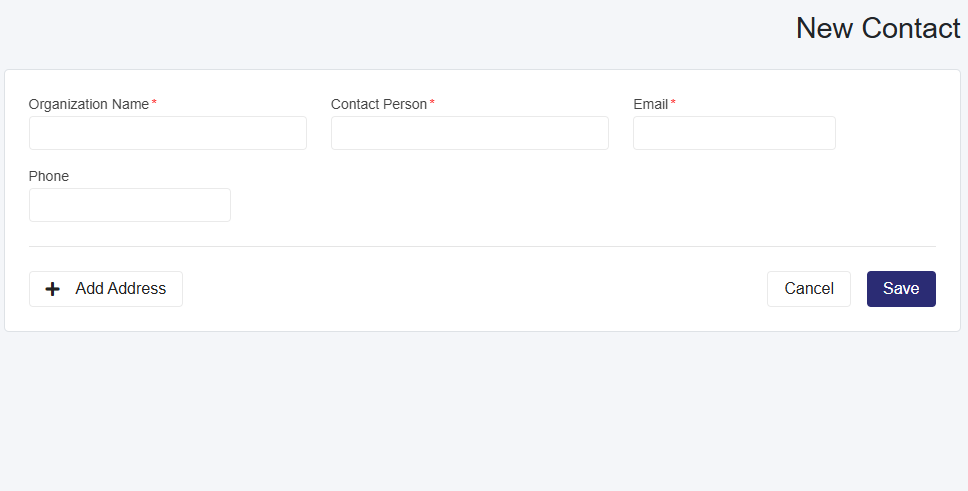
    2. Enter the mandatory and optional information, then select Save.
      1. You can add an address by clicking the +Add Address Button
    3. After selecting and saving, you will be taken back to the Organizations The Organization is added to the table.

Assigning Patients to an Organization

  1. Select the edit icon in the Action Column for the organization to which you want to add a patient.
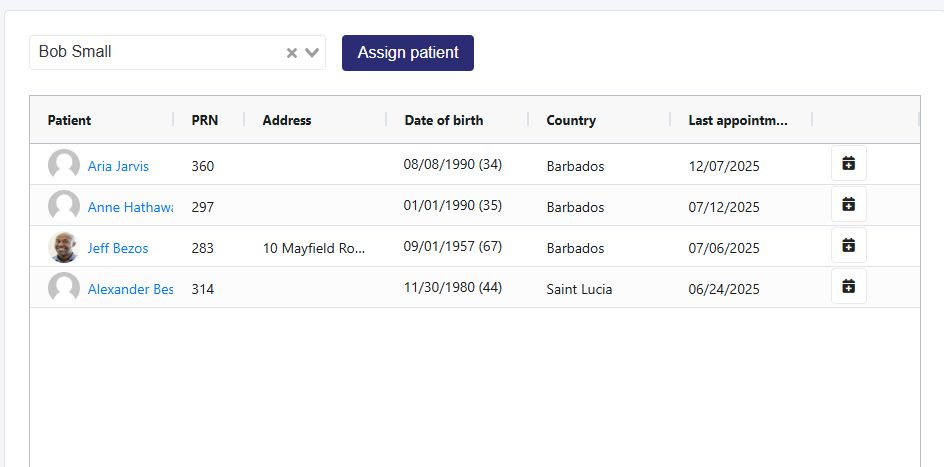
  2. In the Assign to Organization dropdown, select the patient.
  3. Select the Assign Patient button to add the patient to the table below, and the patient is added to the organization

Action Column

Bill Icon: This icon displays any bills associated with this organization, such as an employee who pays for their staff to receive yearly medicals.

Billing to an Organization is explained in the Billing article.

Edit Icon: Edit an organization’s information.

Selecting Organizations from Patient Profile

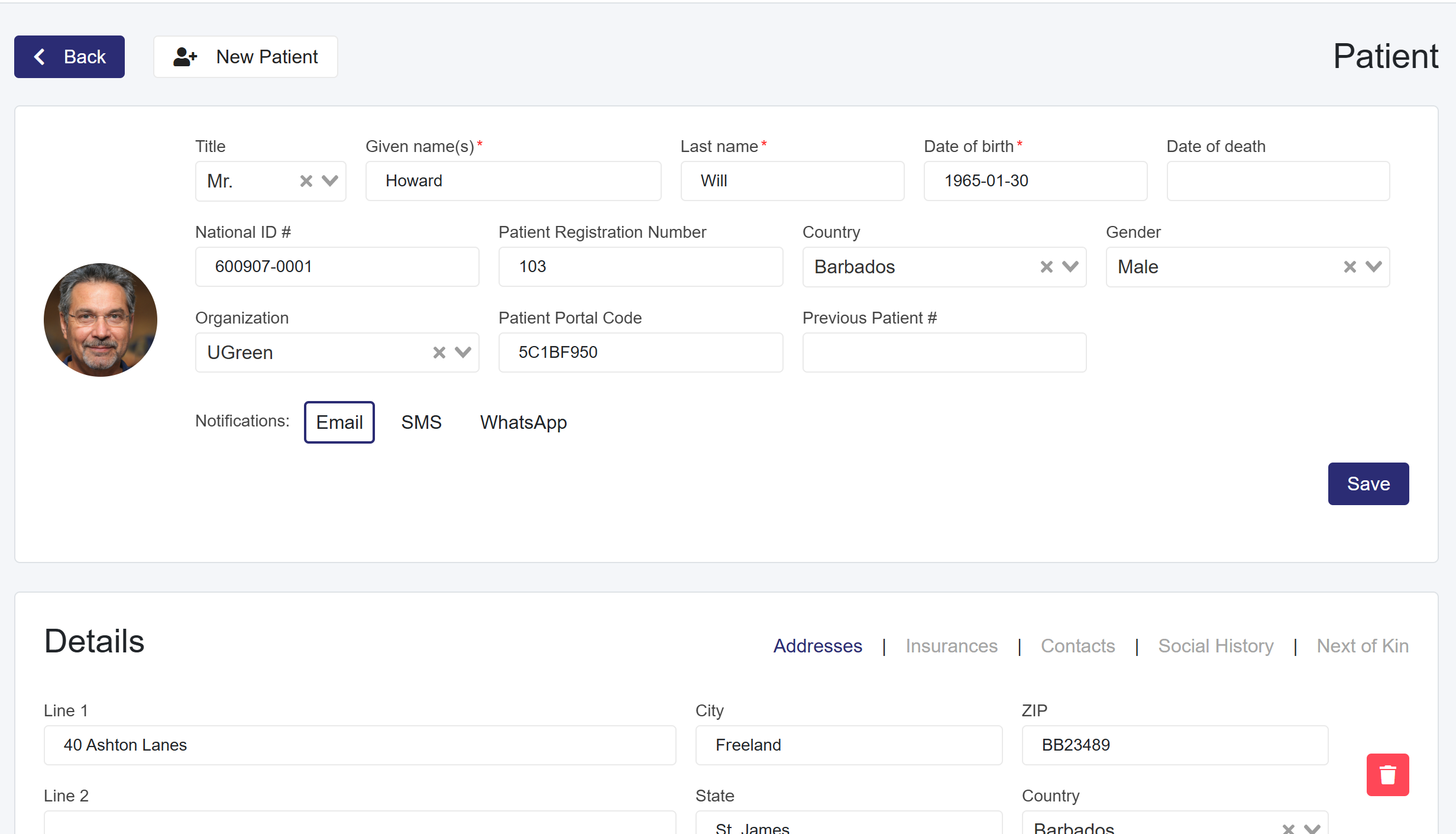
Once an organization is created, you can add the patient to it from the Organization page or the Patient Profile when creating or editing a profile.

  1. From the Patient Profile page, navigate to the Organization dropdown
  2. Select an organization
    • If an organization is already selected, it will show as selected in the dropdown.
    •  However, if you change the organization here, it will add that patient to the new organization and remove it from the previous organization.
Scroll to Top