Consultation Types define the category of consultation for which the patient will be billed. For example, you can create:
Child Consultation
Adult Consultation
Tourist Consultation
Remember, Items such as Administered Medication, Procedures, Immunizations, and Labs are added to the consultation notes and will automatically show on the bill. You must add the pricing for this in Pricing and Taxes.
Default and Custom Appointment Types
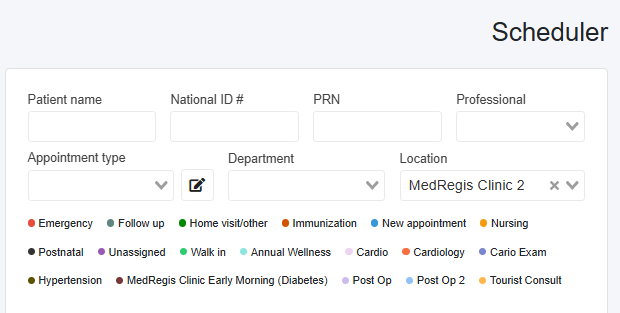
Select the Scheduler page.
Next to the Appointment Type dropdown, click the pad and pencil icon to open the Manage Appointment Types popup.
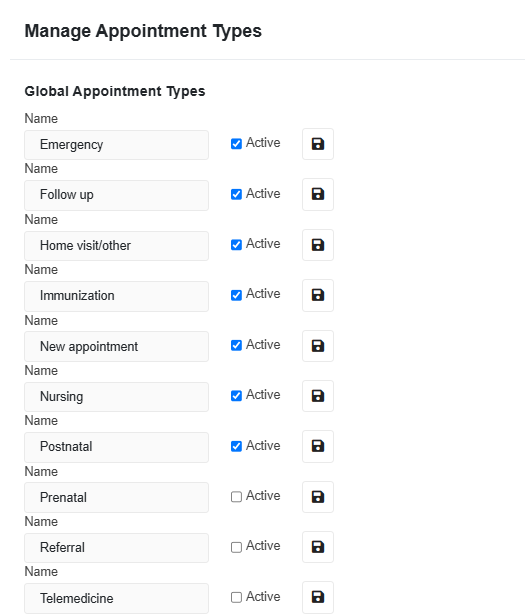
Global Appointment Types:
Default types in the system.
Activate or deactivate them by selecting the checkbox and saving with the respective disk icon.
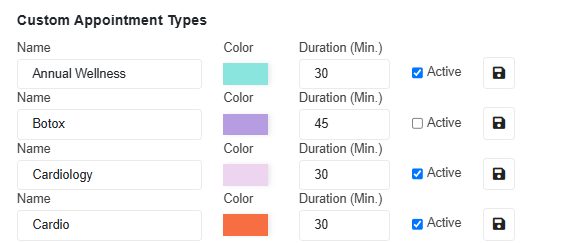
4. Custom Appointment Types:
Types created by your clinic.
Activate or deactivate them by selecting the checkbox and saving with the respective disk icon.
Edit names and save changes with the disk icon.
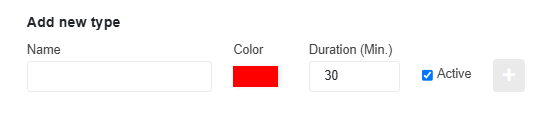
Add New Custom Appointment Type
Navigate to the New Type section
Enter a name, select a color, and set the general duration.
Ensure it is active.
Click the + button to create the new appointment type.