Skip to content
Contact
Account
Contact
Home
For: Clinicians
Left Taskbar Options
Professionals
Professionals
Updated:
08/07/2025
Like
Table of Contents
Professionals Explanations
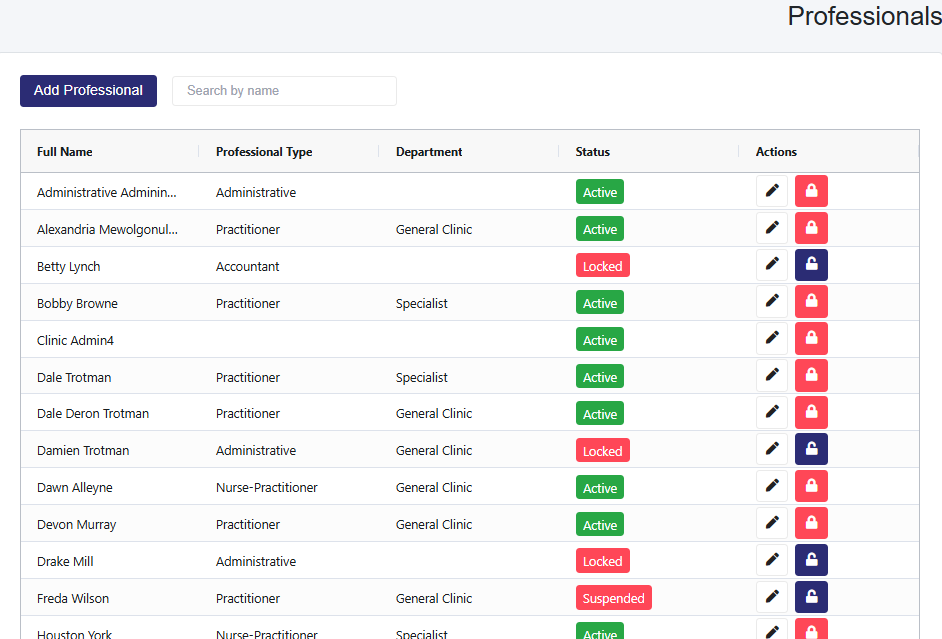
On the Professionals page, you can:
Search for a professional via the Search-by-name textbox
Add a Professional (Clinic Admin Plus)
Click the
Add Professional
button.
The following sections will be on the page that loads.
Professional information
Permissions
Document Signature
Enter the required additional information, then click
Save
.
Account Statuses
Active
: Full access.
Inactive
: Login disabled.
Locked
: Account locked by MedRegis or clinic admin.
Suspended
: Read-only access; no new entries allowed.
Actions Column
Edit Icon (Clinic Admin Plus only)
: Edit a user’s account.
Lock Icon (Clinic Admin Plus only)
: Lock a user’s account.
Eye Icon (Shows for all non-Clinic Admin Plus Users)
: View the Professional's information
Enable Document Signature (After selecting a Professional)
Select the
Enable signatures
checkbox to access two options:
Automatic Signature
: Generates a signature based on the user’s name.
Custom Signature
: Enables users to upload their signature.
Prev
Previous
Professionals
Next
Organizations
Next
Who Needs to Log In →
Scroll to Top