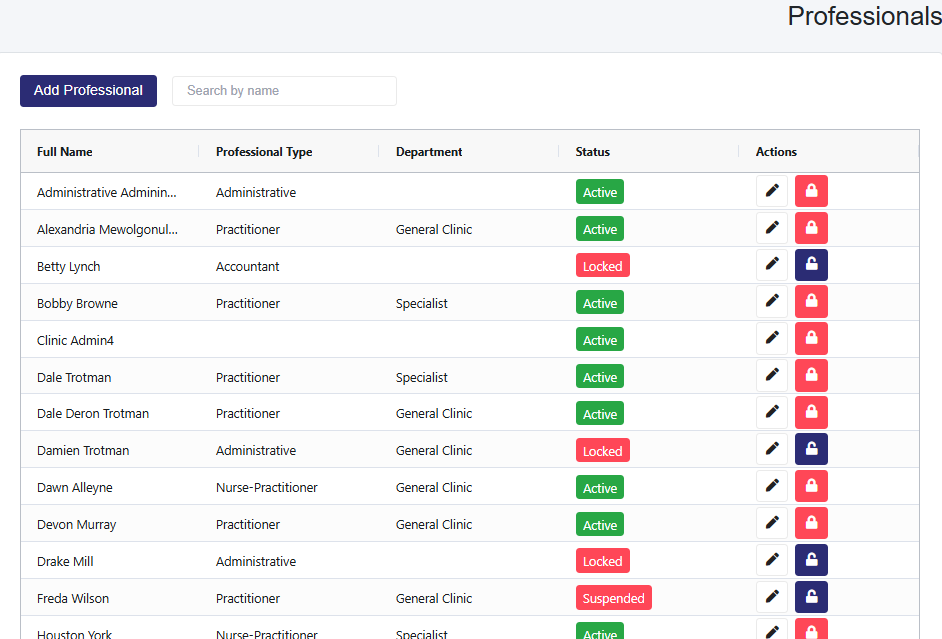
Search for Professionals
- Use the search-by-name textbox to locate specific users.
Add a Professional (Clinic Admin Plus)
- Click the Add Professional button.
- Enter the required and additional information, then click Save.
Enable Document Signature (Clinic Admin Plus)
- Select the edit icon (pencil) next to the patient to get onto the patient's profile page
- Select the enable signatures checkbox to access two options:
- Automatic Signature: Generates a signature based on the user’s name.
- Custom Signature: Enables users to upload their signature.
Signatures show on Prescriptions and Custom Letters.
Account Statuses
- Active: Full access.
- Inactive: Login disabled.
- Locked: Account locked by MedRegis or clinic admin.
- Suspended: Read-only access; no new entries allowed.
Actions Column (Clinic Admin Plus)
- Edit Icon: Edit a user’s account.
- This is where you can Enable Signatures, Appointment Bookings, Labs Permission, Imaging/Studies Permission, and Notes Permissions
- Lock Icon: Lock a user’s account.
Actions Column (Non Clinic Admin Plus User)
Eye Icon: To view and not edit user's information.