The Patient Info Section

Updated:

Note: This article does not cover Billing, Referral Letters, Clinical Summaries, or Discharge. These actions are usually completed at different stages of creating Consultation Notes and often require information from multiple sections. For guidance, see the “Creating a Consultation Note” article.

Table of Contents

Basic Information

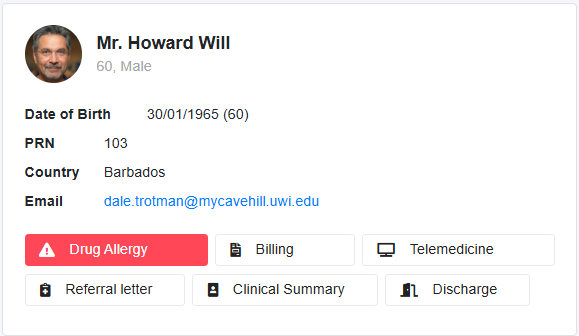
Here you will see the Patients:

  • Patient Image, Name, Age, Gender
  • DOB, PRN, Country
  • Email - You can click the email address to send the patient an email once it has been entered and is displayed next to the title ‘Email’.

In this section, there are the following buttons:

  • Allergies
  • Billing
  • Telemedicine
  • Referral Letter
  • Clinical Summary
  • Discharge

Allergies (incld. Drug Allergies)

  • Indicator Colors:
    • Yellow: Drug Allergy Unknown
    • Green: No Known Drug Allergy
    • Red: Known Drug Allergy

Adding Known Drug Allergies:

  1. Select the Drug Allergy  Button and click + Add Allergy in the pop-up.
  2. Select the Allergy from the dropdown
    • See the Adding Allergies Not in the List below
  3. Add the allergy details (location, reaction, severity, and notes are optional).
  4. Click Add to save.

Adding Known Allergies (Contact Environment, Food):

  • Follow the same steps above

Marking No Known Allergies:

  • Select Drug, Contact, Food, or Environment in the No Known Allergies section for the types of allergies the patient does not have.

Adding Allergies Not in the List:

  1. In the Allergies dropdown list, there are five options:
    • Other
    • Other- Contact
    • Other- Drug
    • Other- Environmental
    • Other- Food
  2. Select the correct option (if you want the Drug Allergy Alert to show, choose Other: Drug Allergy), then enter the name of the allergy into the provided text box and save

Telemedicine

Telemedicine

  • Add your Doxy.me account to the My Profile section for telemedicine functionality.

Billing, Referral Letter, Clinical Summary and Discharge

These topics will be covered as part of the process for creating a consultation note, explained in the related articles under Creating a Consultation Note.

Scroll to Top