Table of Contents
To-Do Explanations
On the Pending Tab within the left taskbar:
- Use the dropdown box to the right to View All, Pending, or Completed
- Tick off, edit, and delete reminders
To Do Button in Taskbar
If next to the To-Do option, there is an orange circle with a number that highlights the number of past due reminders.
Reminders List
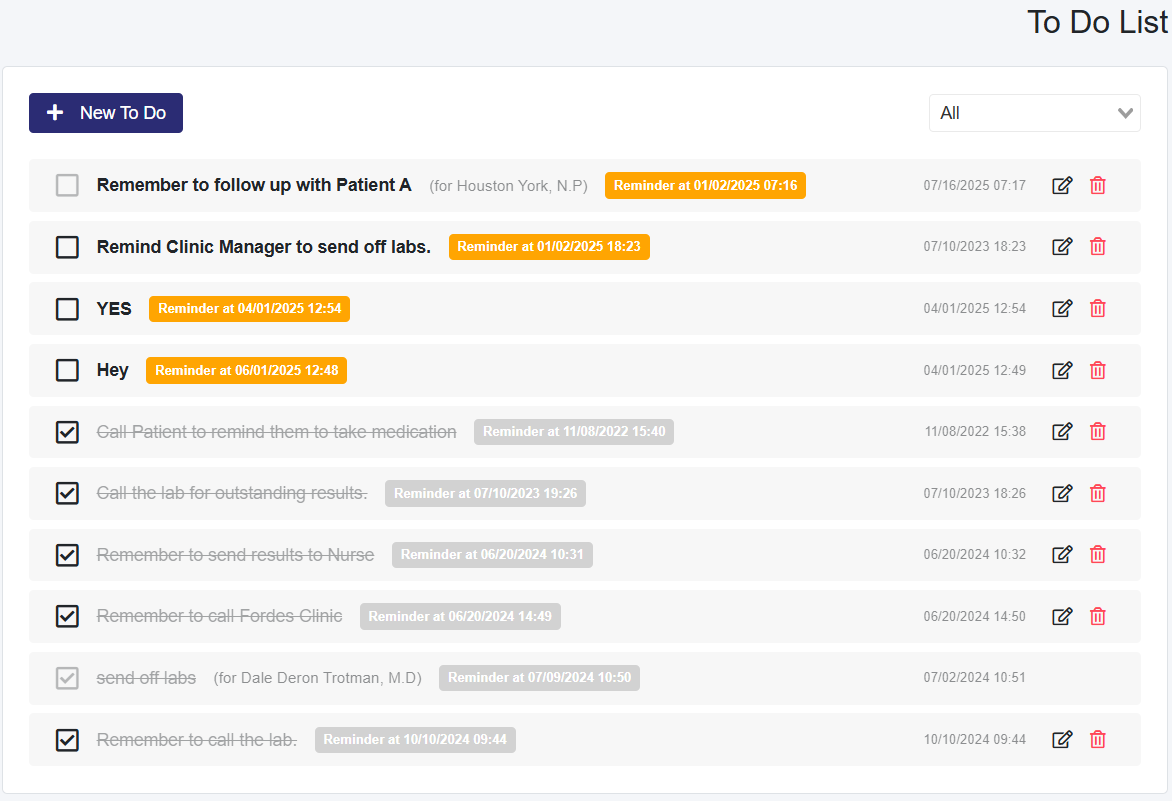
- Each reminder has a check box that you can finalize when it is finished.
- If another Professional is responsible for the reminder, you will see ‘for’ and their name next to the reminders. The person responsible can only check off these reminders.
- If another Professional sent you a reminder, you will see ‘from’ and their name next to the reminders. The person responsible can only check off these reminders.
- The date and time reminders that are due are highlighted in orange.
- The date and time when the reminder was created are to the right, next to the edit icon.

Creating a Reminder
You can create reminders for yourself or other staff members
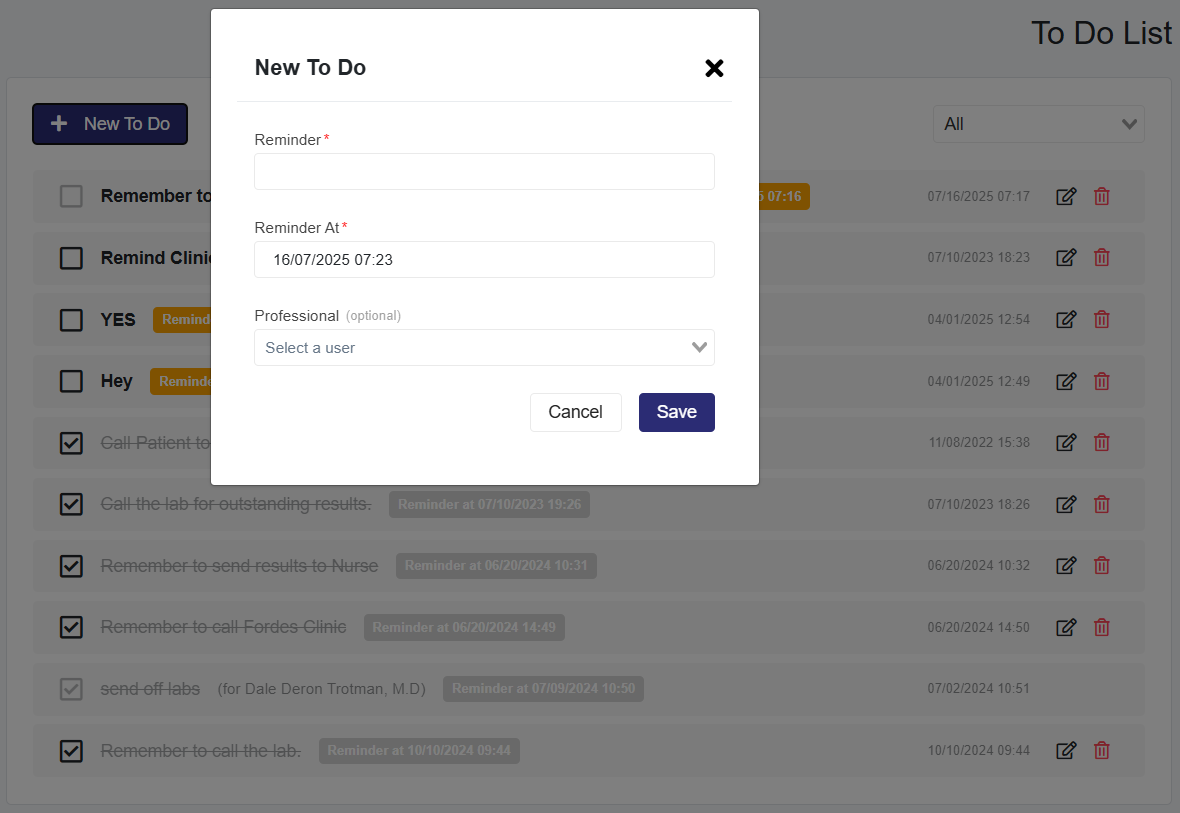
- Select the + New To Do
- When the pop-up appears, add the name of the Reminder.
- Set the ‘Reminder At’
- If the reminder is for yourself, do not add a Professional to the reminder.