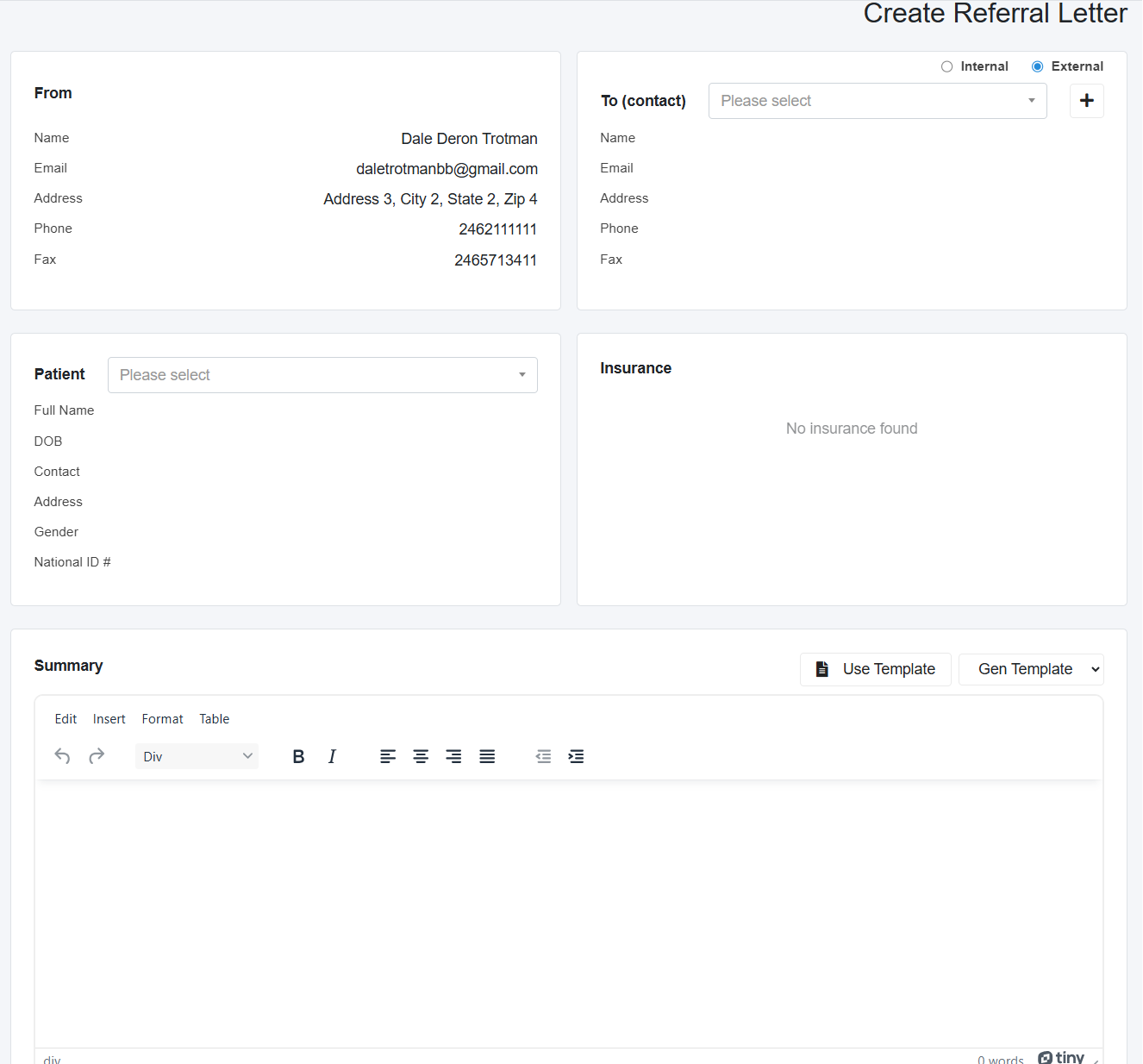
- Use the Referral Letter button to generate a letter based on the current consultation note.
- Select an internal or external contact from the dropdown or create a new one.
- To create a new contact, select the + button next to the dropdown.
- Add your Summary and then Save or Save & Send.
- You can select a Template in the Summary section.
You can learn how to create templates here.
When creating a template, place the information that will generally change per letter in [ ], for example, the doctor's name or the reason.
When creating a referral letter and you have selected a summary template that includes [ ], use the TAB key to cycle through the [ ] within the template to change the information so it reflects what is needed for quick documentation.