Letters, Emails & Forms

Letters, Emails & Forms

Updated:

Please Note

Emails for Referral Letters, Clinical Summaries, Billing, Reminders, Post-Visit Instructions, and Custom Letters: Send Text As: Attached PDF (message created in the email body is sent as a PDF) will automatically include your clinic name in the default email body message.

For Custom Letters: Send Text As: Email Body (the message is seen in the email body by the receiver); include your contact information in the email body. For faster documentation, add it to every template, or save a contact template to use when you need to add contact information in your message.
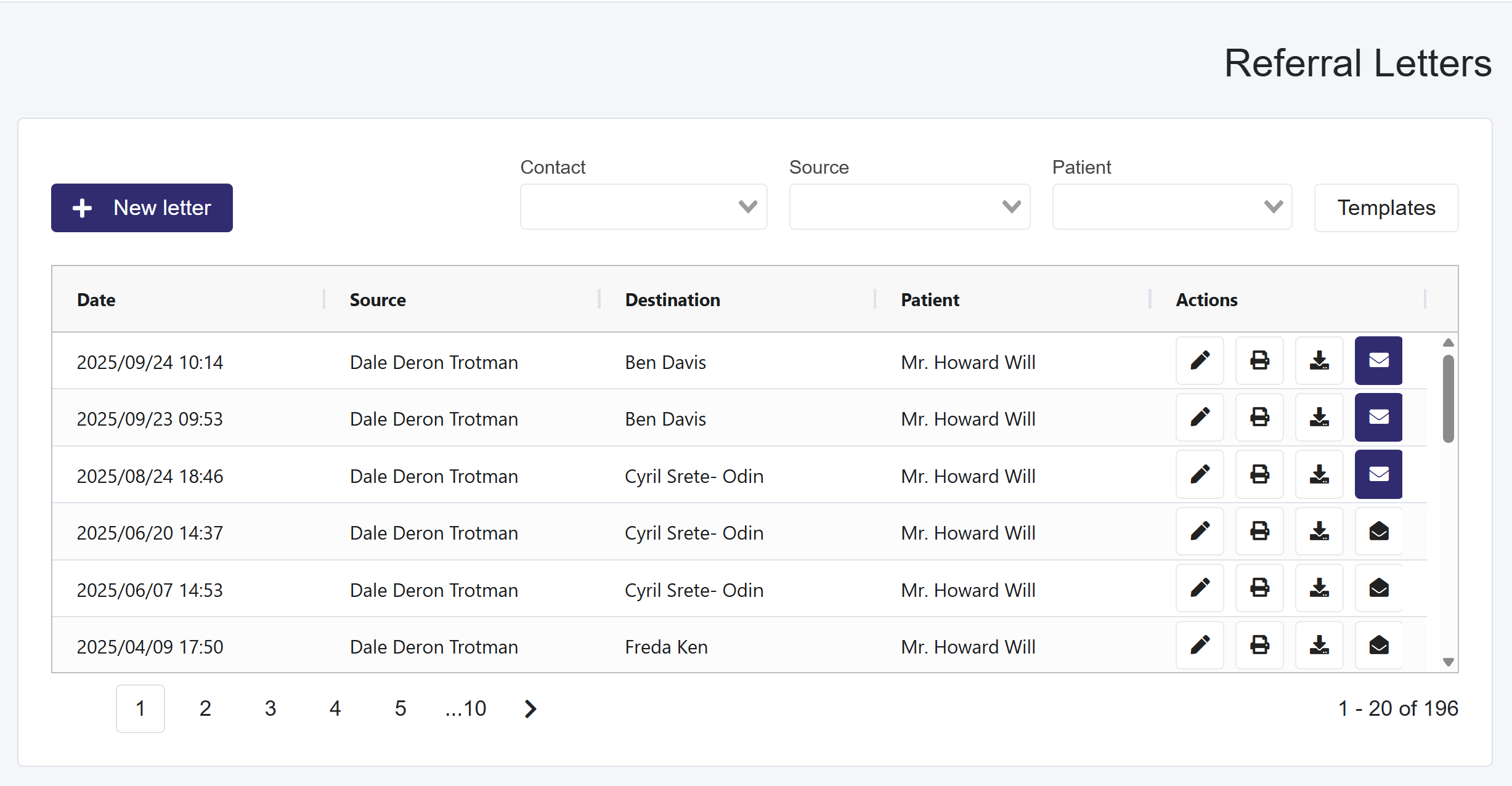
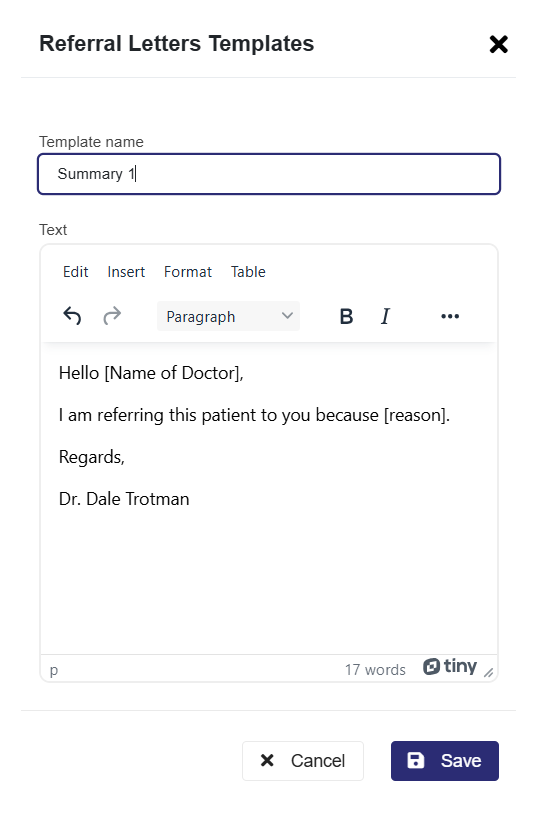
Table of Contents

Referral Letter

  1. Select the Letters dropdown in the top taskbar and select Referral Letter.
  2. This will load a page with a table of all saved referral letters.
    • In this table, you can search for referral letters by using the search options at the top.
    • You can edit, print, download, or email any saved referral letters in the Actions.

Creating a Referral Letter Summary Template

  • Select the Letters dropdown in the top taskbar and select Templates
  • This loads a pop-up where you will see all the saved templates and a + Add new button.
  • Select the + Add new button and enter a name for the Summary, and create the Summary below

When creating a template, place the information that will generally change per letter in [ ], for example, the doctor's name or the reason.
When creating a referral letter and you have selected a summary template that includes [ ], use the TAB key to cycle through the [ ] within the template to change the information so it reflects what is needed for quick documentation.

Create a Referral Letter (not for Administartive users)

  1. Select the + New Letter button
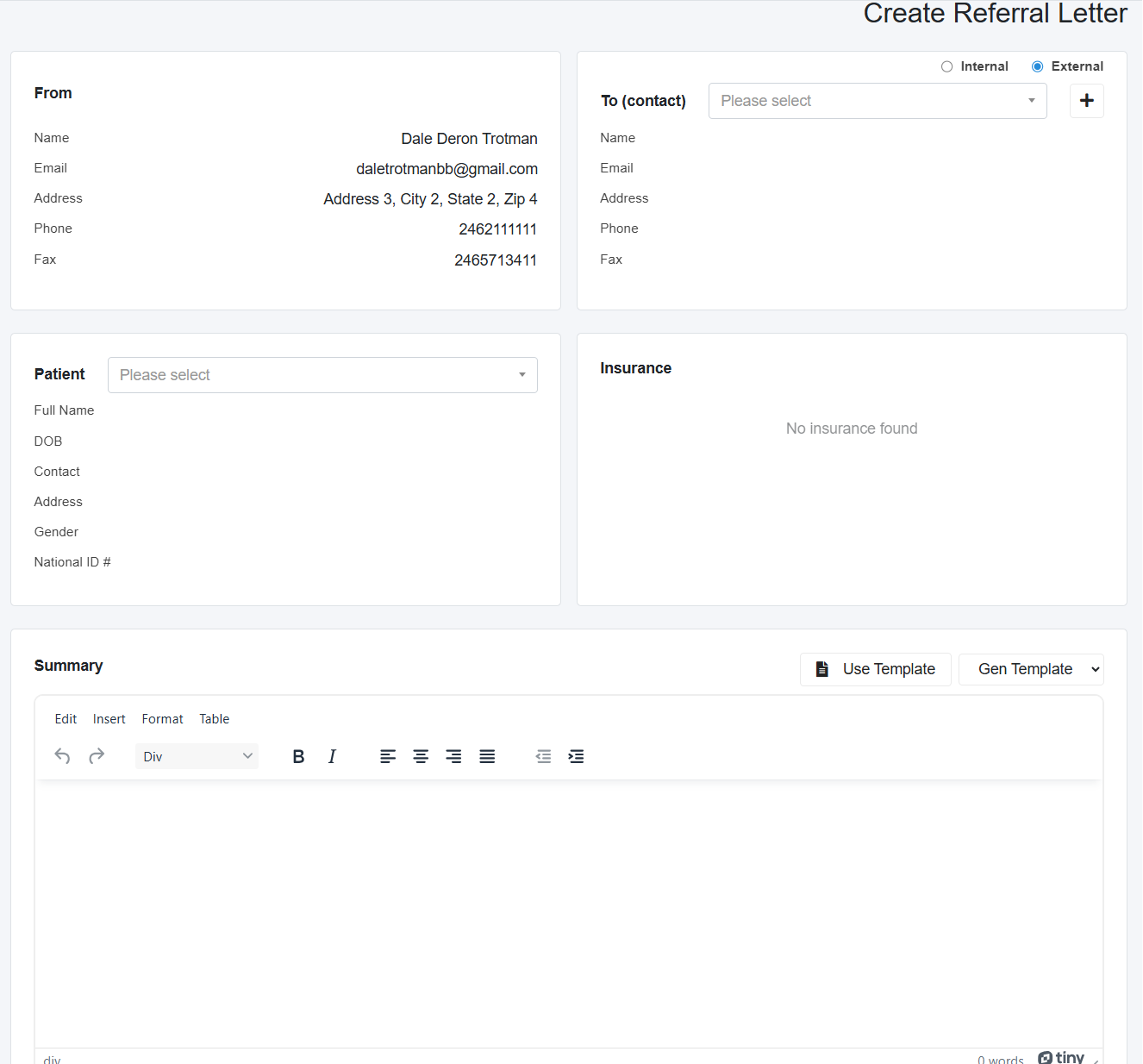
  2. This loads the Create Referral Letter page, with your information in the first box to the left.
  3. In the next box, you will select the person to whom you are sending the Referral Letter.
    • By default, it is set to External, and the dropdown box is called To (contact).
      • Select the user from the dropdown box, or if a new user needs to be created, use the + button next to the dropdown to create the user.
    • If you switch to Internal, the dropdown box is called To (User)
      • The dropdown will have all your Professionals so you can select who is receiving the Referral Letter.
  4. Next, select the Patient, which will load any Insurance information (once saved in the patient profile) in the related section.
  5. After this, you will create a Summary and then add the medical information that will make up the Referral Letter
    • You can also select a Template.

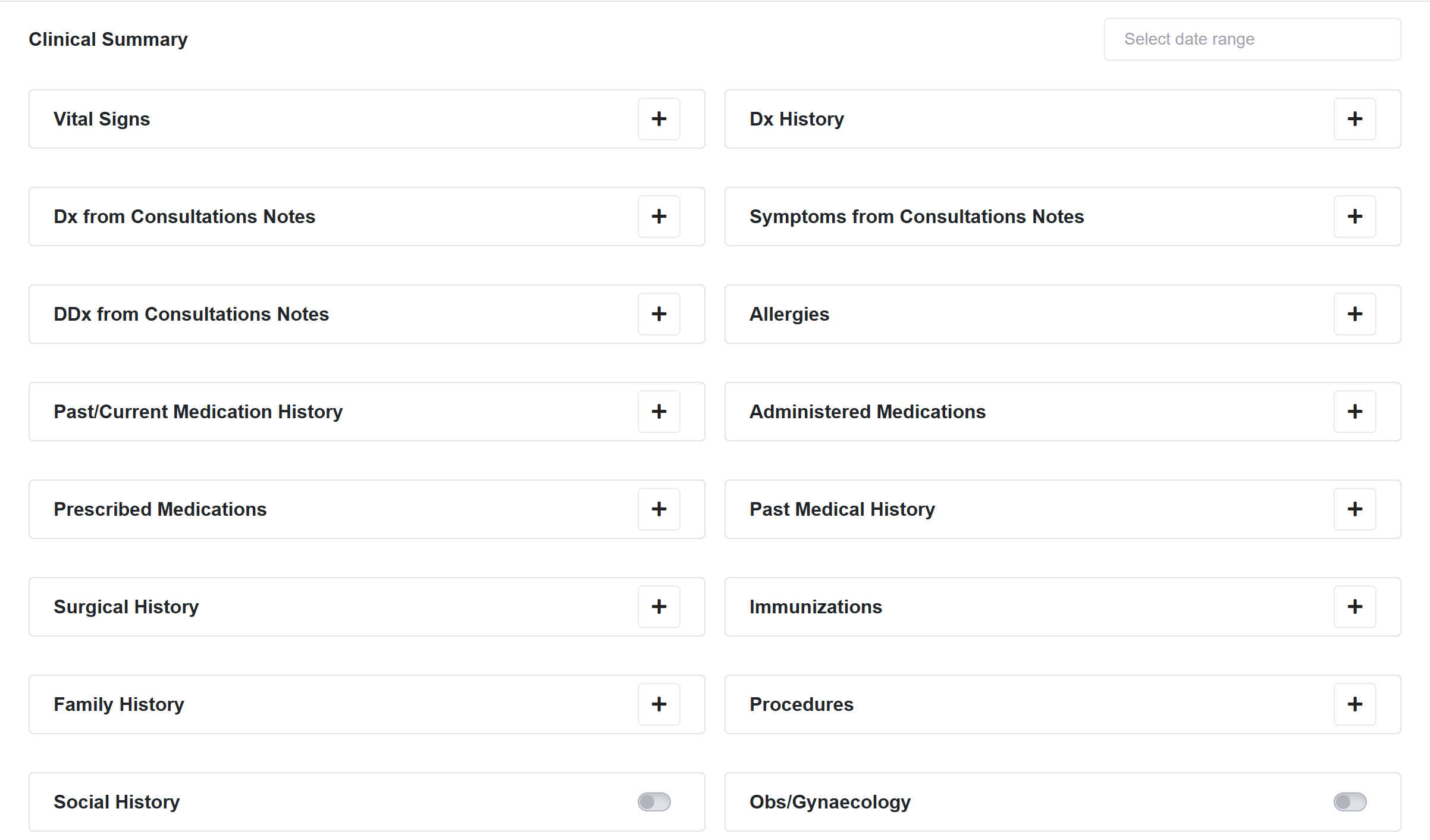
6. In the Clinic Summary, Consultation, Labs/Imaging, and Documents section.

    • Utilize the date range to add items within the date range selected and remove any items as needed or add items individually.
      • Date Range filters Clinical Summary, Consultation, Labs/Imaging, and Documents to show items within those dates
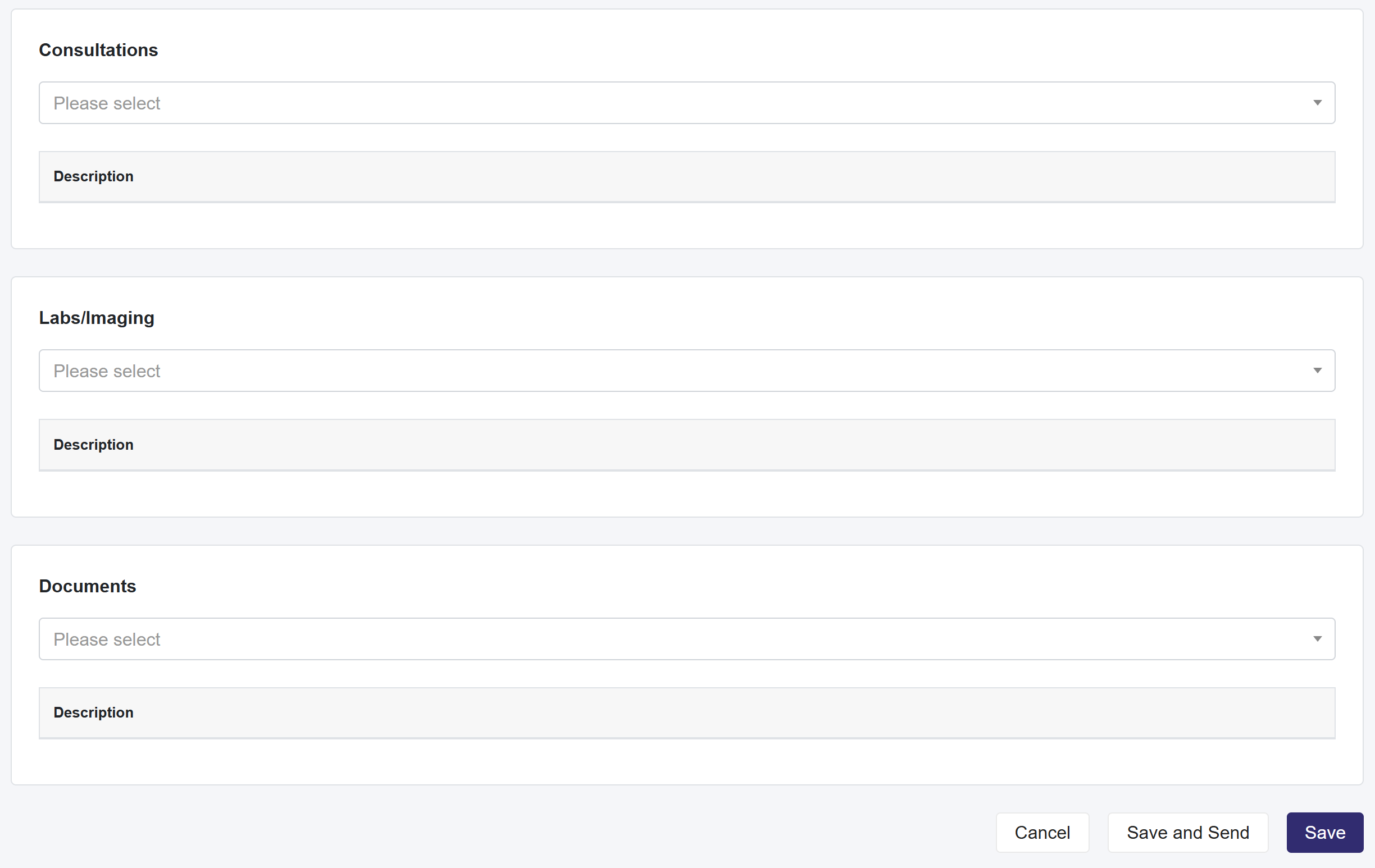
    • Select the consultations you want to add to this letter in the Consultations section.
    • In the Labs/Imaging section, select the labs and imaging orders you want to add to this letter
    • Finally, select the Documents you want to be part of this Referral Letter
      1. If you send this as an email, the document will be attached separately.
    • When you are finished, select Save and Send or Save.

Clinical Summaries (not for Administartive users)

Please Note: Clinical Summaries are created on the Consultation Notes page or when viewing a past consultation note

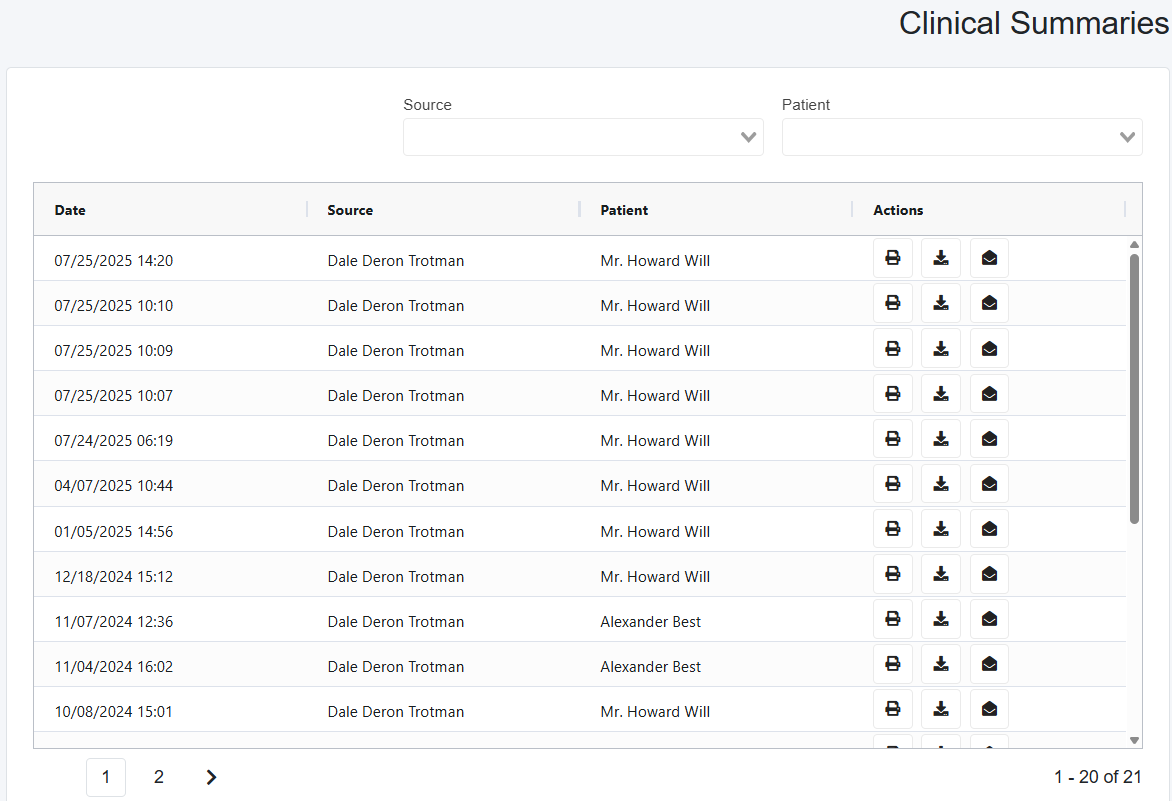
  1. Select the Letters dropdown in the top taskbar and select Clinical Summaries
  2. This will load a page with a table of all Clinical Summaries
  3. On this page, you can view all saved Clinical Summaries that were created within your patient’s consultation notes
    • You can search by using the Source and Patient
    • In the Actions, you can Print, Download, or Email Clinical Summaries.

Custom Letters

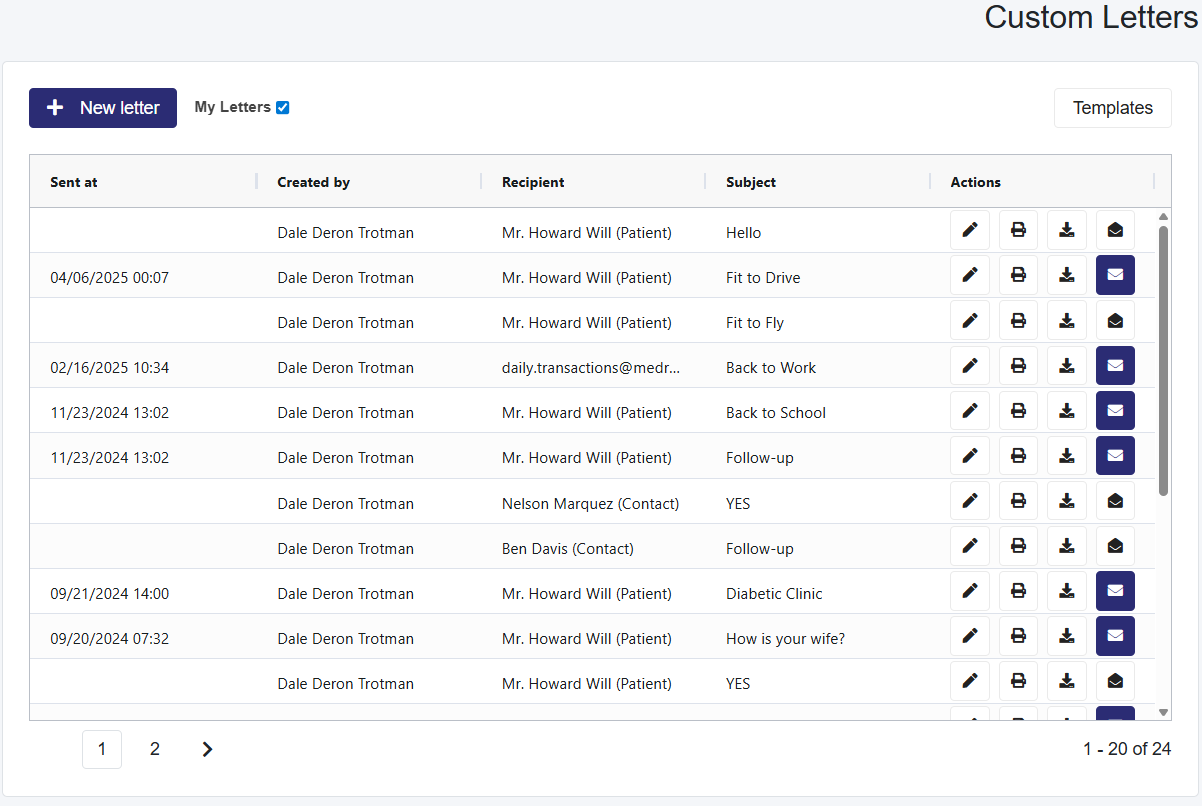
  1. Select the Letters dropdown in the top taskbar and Select Custom Letters
  2. This will load a page with a table of all Custom Letters
    • In this table, My Letters are selected by default. To see all letters sent to a patient, deselect it.
    • In the Actions section, you can edit, print, download, or email any saved Referral letters.

Create Templates for Custom Letters

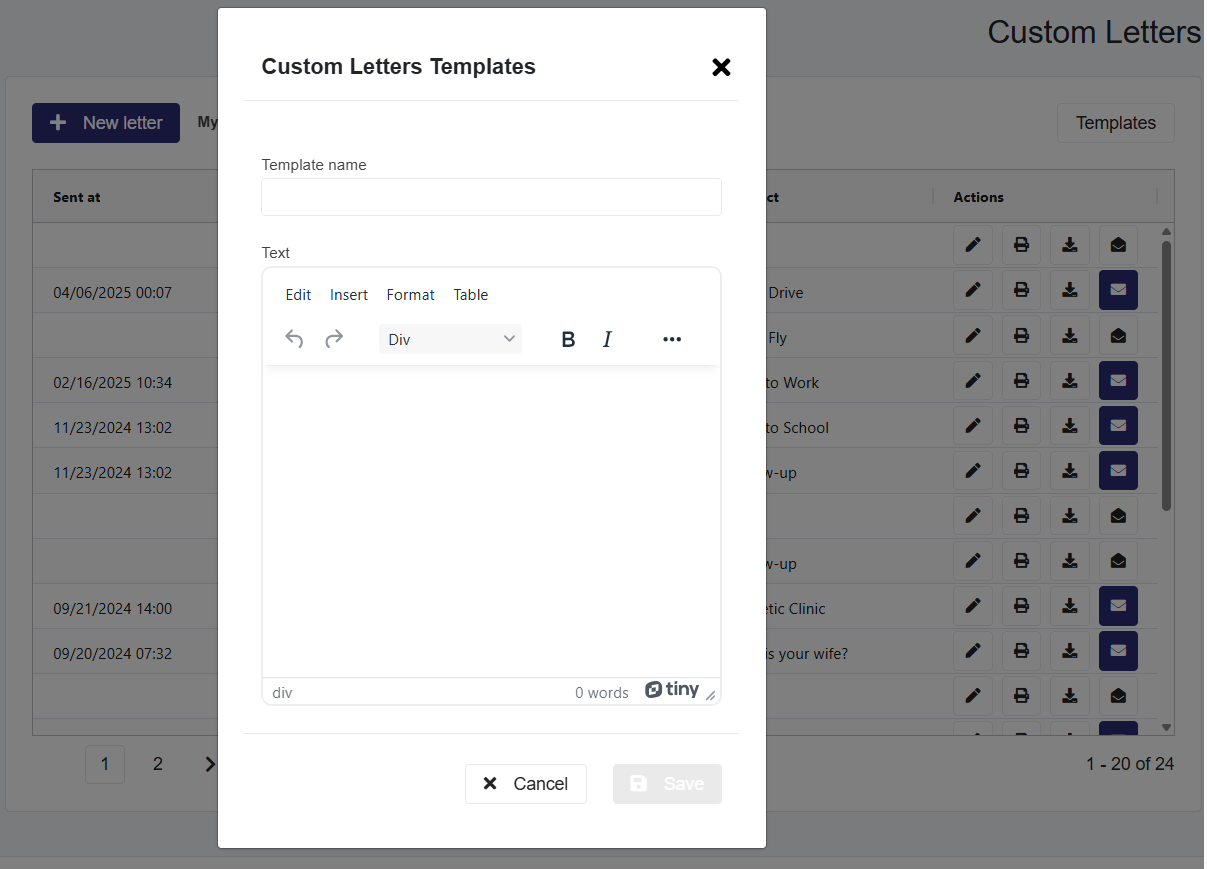
  1. Select the Templates button to the right to activate a pop-up.
  2. On this popup called Custom Letters Template, you will see
    • Templates already created, which you can edit or delete.
    • and the + Add new button to create new templates
  3. Select the +Add new button, which will launch a section for you to create a template and provide a name for that template
    • When creating a template, you can utilize [ ] brackets for the information that will change from patient to patient. Please see the video.
  4. Select Save to create the template.

To Send a Custom Letter

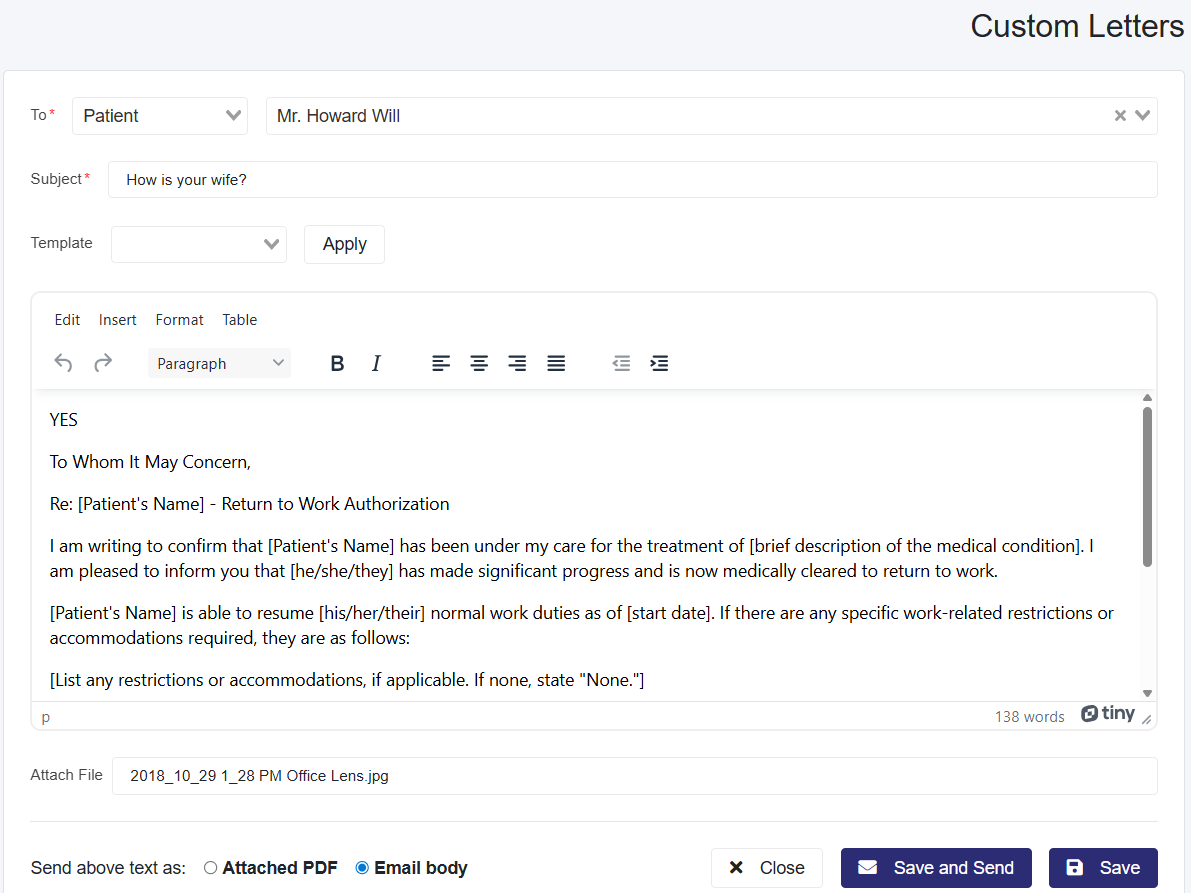
  1. Select the + New Letter button to load the page to send emails called Custom Letter.
  2. In the To section, in the first dropdown, select between:
    • Patient- already in the system
    • Contact- created in the Contacts section
    • User- Professionals
    • Other- any email you enter
  3. Add a Subject to the email you want to send
  4. (Optional) Select a Template for the email from the dropdown and then select Apply.
  5. If you are not using a template, you can create your email in the provided Text field.
  6. Attach Files allows users to add any documents or images to the email.
  7. Send Above Text as:
    • Attached PDF—Instead of sending the email in the body, it will send it as a PDF. However, the email will still have an auto-created summary in the body.
    • Email body- The information created in the text box is saved in the body of the email.
  8. When finished, select Save and Send or Save

Forms

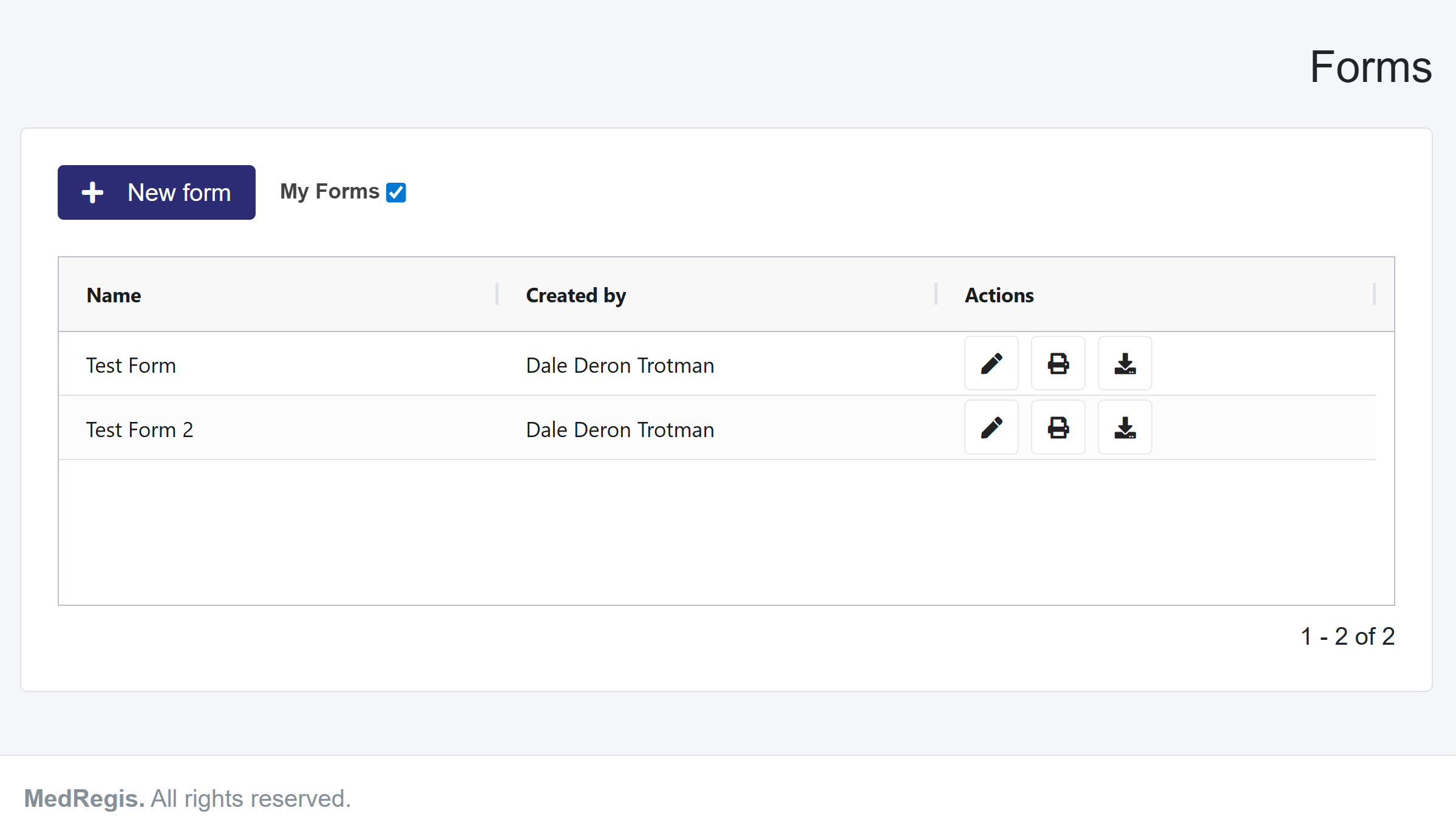
  1. Select the Letters dropdown in the top taskbar and select Forms.
  2. This will load a page with a table of all saved forms.
    • You can edit, print, or download any form in the Actions
  3. You can also send a form to the patient's portal

How to Create Forms

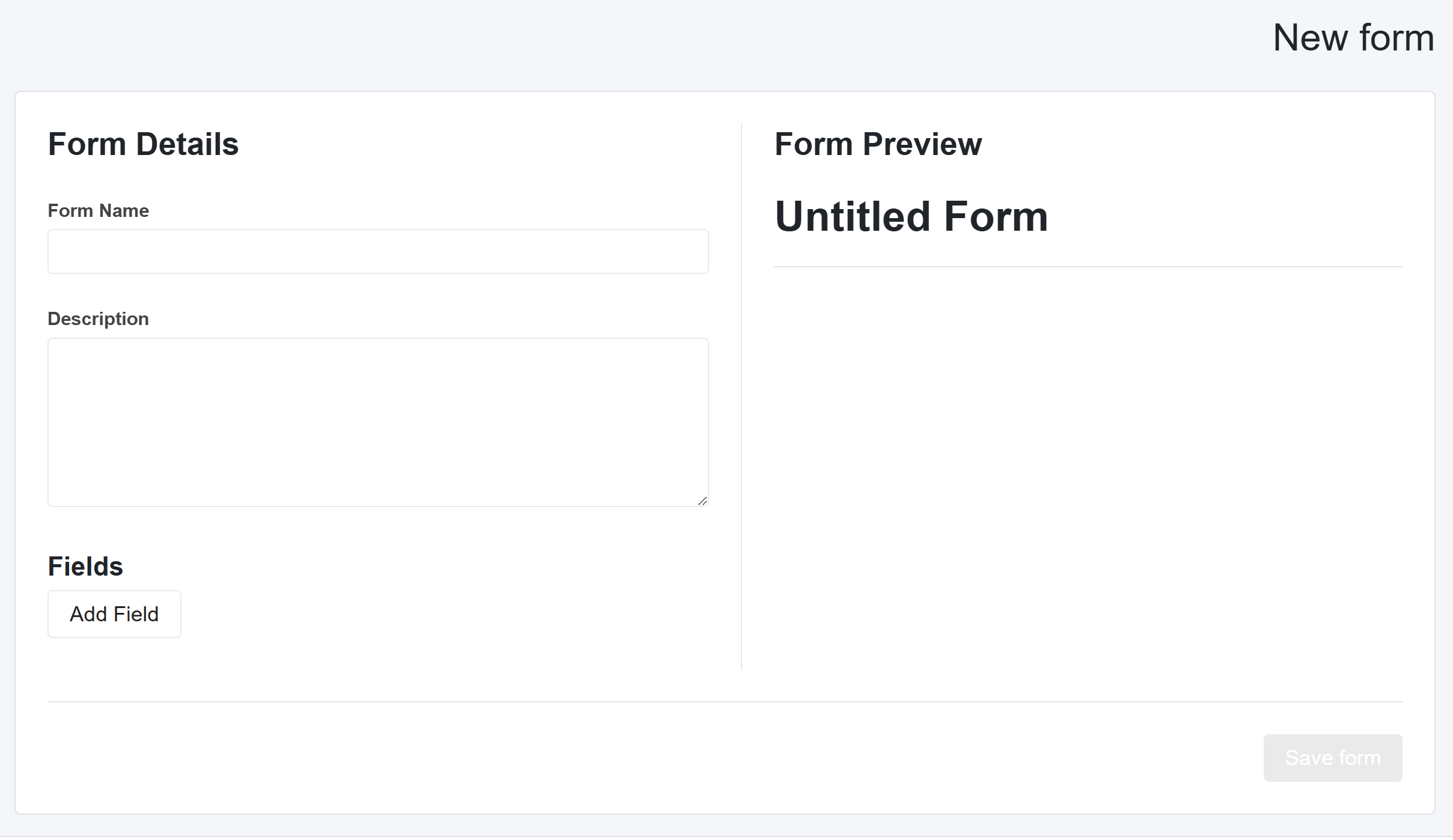
  1. Select the + New Form button
  2. This loads the page to create the form to the right and a preview of what you are making to the left.
  3. Enter the Form Name.
  4. Add the Description to explain the type of form.
  5. Now you have to decide the fields you will add. Each field will have a Forms Label, which in most cases will be your question for your patients, and a Form Description that further describes the question.
    • Text-  This allows the patient to enter their responses as text.
    • Number- This allows the patient to enter numerical responses.
    • Options- This allows the patient to select multiple options, which you will create in the Dropdown Options section, with each option created on a new line
    • Yes/No- This allows patients to select either yes or no.
  6. When finished, select the Save form button at the bottom.

Contacts

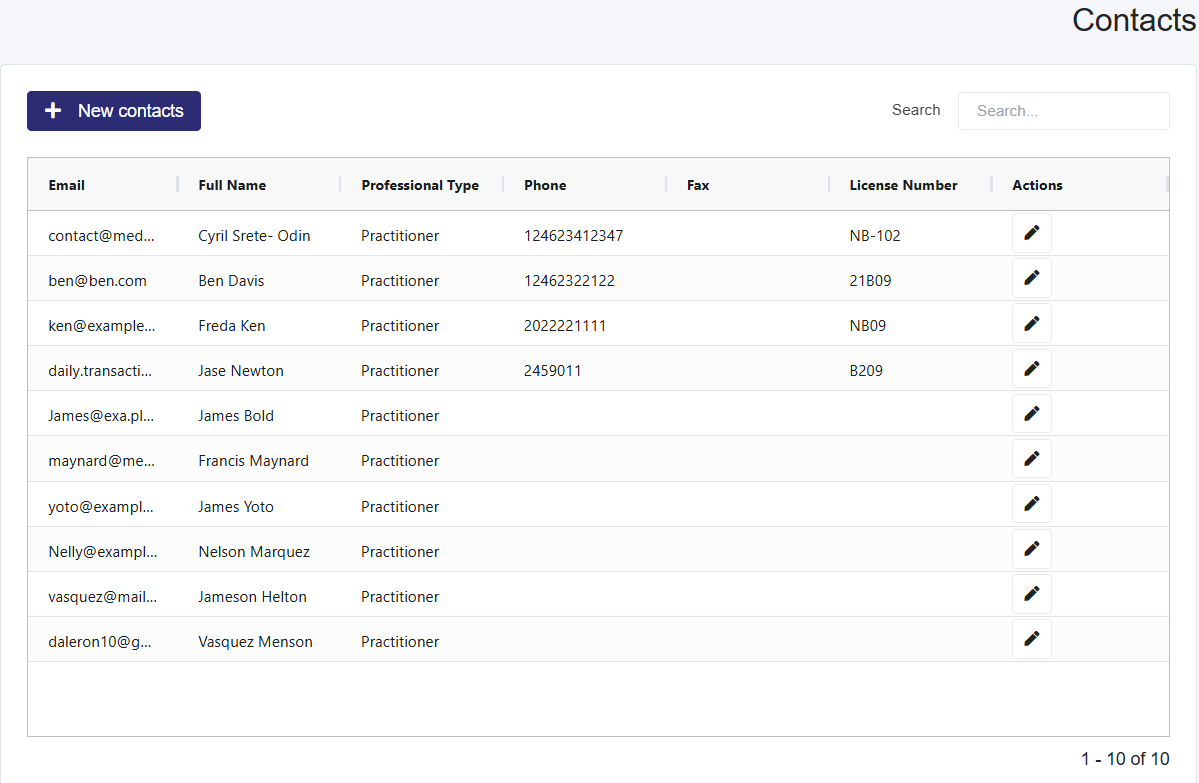
  1. Select the Letters dropdown in the top taskbar and Select Contacts
  2. This will load a page with a table of all Contacts
    1. You can search the table using the provided Search

Create New Contacts

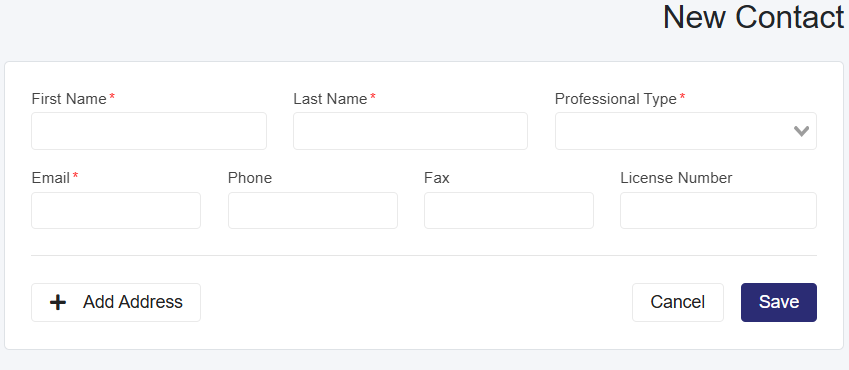
  1. Select the + New Contacts button, which will load the New Contact page
  2. Enter the mandatory information and, if necessary, the optional information, including the address, which can be added by selecting the +Add Address
  3. Select Save
Scroll to Top