
The Consultation Note- Quick Documentation Features
Table of Contents
Shortcuts: @Trigger
@ Trigger for Fast Documentation
For a visual walkthrough, refer to this video.
- Subjective
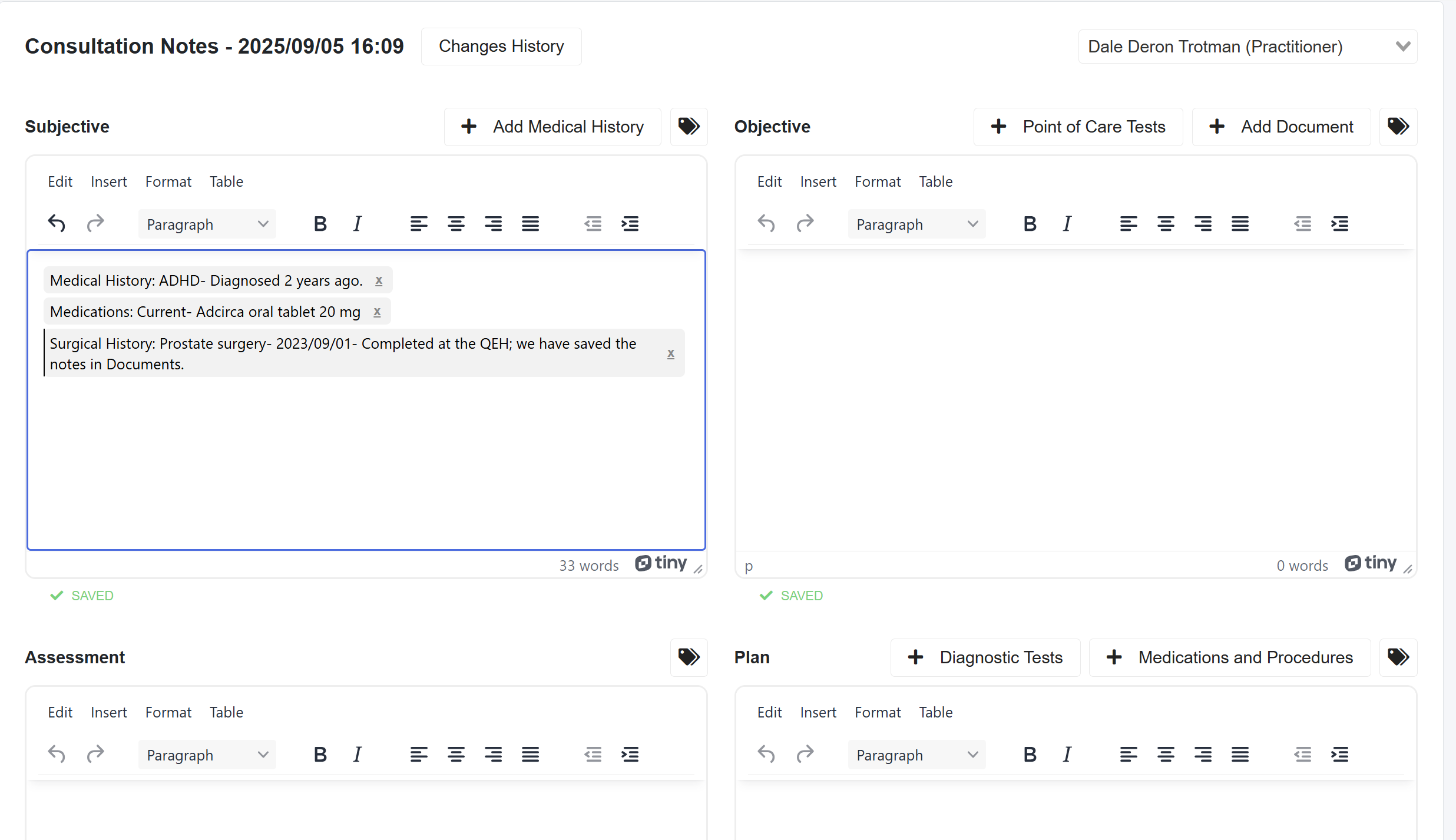
- The Medical History button has 6 sections excluding Social History (Diagnosis, Allergies, Past/Current Medications, Past Medical History, Surgical History, Immunizations), where you can use the @trigger in the respective textbox to search specifically for what you want to add, for example:
- If you are looking for a past or current medication, type @ and then the name of the medication (e.g., @Abarcose)
- If you are looking for a type @ and then the name of surgery (e.g., @Appendectomy)
- Plan
- The Medications & Procedures section has 4 sections: Prescriptions, Administered Medications, Immunizations, and Procedures, where you can use the @trigger in the respective textbox to search specifically for what you want to add, for example
- If you are looking for a medication that was administered or want to create a prescription, type @ and then the name of the medication (e.g., @Abarcose), and in the pop-up, select if it was administered or for a prescription.
- If you are looking for a procedure, type @ and then the name of the procedure (e.g., @Back Slab: Full Leg)
- The Medications & Procedures section has 4 sections: Prescriptions, Administered Medications, Immunizations, and Procedures, where you can use the @trigger in the respective textbox to search specifically for what you want to add, for example
- The Medical History button has 6 sections excluding Social History (Diagnosis, Allergies, Past/Current Medications, Past Medical History, Surgical History, Immunizations), where you can use the @trigger in the respective textbox to search specifically for what you want to add, for example:
Shortcuts: Text Shortcuts
Text Shortcuts
- Select the tag icon for the respective section (Subjective, Objective, Assessment, or Plan) of the consultation note to access or create text shortcuts. Examples of shortcuts you can make are Chief Complaint, HPI, and ROS for Subjective, which you can make as one shortcut instead of three separate ones.
- When creating your text shortcuts, use [ ] to surround specific information within the text shortcut that will change from patient to patient for even quicker documentation. This allows you to use the TAB button to skip between the information that changes from patient to patient, documenting their medical details.
For a visual walkthrough, refer to this video.

Creating Text Shortcuts
- Select the tag icon for the respective section (Subjective, Objective, Assessment, or Plan)
- A pop-up will appear, and select the +Add new button
- Select the Shortcut Type from the dropdown on the popup that appears
- Enter the Shortcut name.
- Create the Shortcut in the textbox provided. The textbox offers various options to structure your text shortcut, including the ability to create tables.
For a visual walkthrough, refer to this video.
- Set the Department you want to assign it to and Save.
- By default, it is set to All Departments.
Please Note: You can also create test shortcuts from the top right-hand corner dropdown menu. For more details on this topic, refer to this article.

Shared Shortcuts
When the Department or All Departments is selected when creating a Text Shortcut, it must be approved by the clinic administrator. It will then display the Blue Square Icon with the word "Shared".
For a visual walkthrough, refer to this video.

The Body of the Consultation Note
- Subjective: Patient complaints and Medical History.
- The Medical History button has 8 sections (Diagnosis, Allergies, Past/Current Medications, Past Medical History, Surgical History, Immunizations, Family History, Social History) where you can create various types of medical history or use the @trigger in the respective textbox to search specifically for what you what to add. See @Trigger for Fast Documentation above
- The @ trigger will not work for Social History
- The Medical History button has 8 sections (Diagnosis, Allergies, Past/Current Medications, Past Medical History, Surgical History, Immunizations, Family History, Social History) where you can create various types of medical history or use the @trigger in the respective textbox to search specifically for what you what to add. See @Trigger for Fast Documentation above
- Objective: Observations, Point of Care Tests, and Documents upload.
- Assessment: Your assessment notes.
- Assessment Extras: Diagnosis, Symptoms, and Differential Diagnosis dropdowns with ICD-10 Codes. The most RECENT selections are shown at the top of each dropdown.
- Plan: Medications, Immunizations, Diagnostic tests for 3rd party labs, and procedures.
- The Medications & Procedures section has 4 sections: Prescriptions, Administered Medications, Immunizations, and Procedures, where you can create information for these 4 sections or use the @trigger in the respective textbox to search specifically for what you want to add. See @Trigger for Fast Documentation above.
- Post Visit Instructions: In this section, click the Add Instructions button and create your own Post Visit instructions in the textbox (which you can save for approval by an Admin) or use one of the approved templates. When you are finished, you can Download, Print, or Send it to the Patient. Also, see the Post Visit Instructions article

