CheckOut

Updated:

Table of Contents

Front Desk/Receptionist

1. Patient Checkout Process:

    • When all medical professionals in the appointment have discharged the patient, it is time for the patient to Checkout.
    • The patient returns to the front desk.

2. Navigating to Checkout:

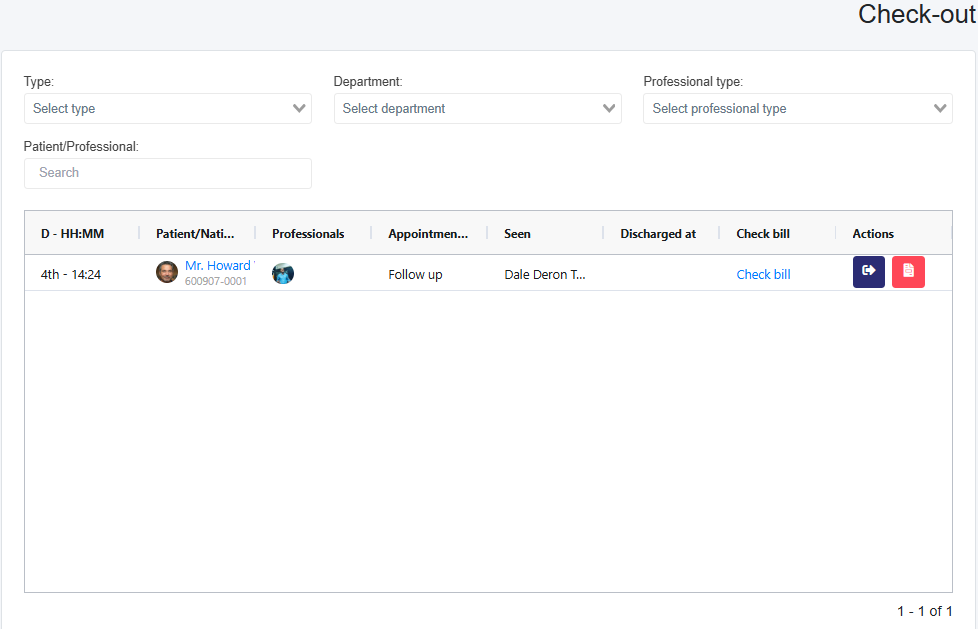
    • Go to the Checkout section and select the patient who needs to checkout.
    • If the patient has outstanding invoices, the Action column will display two buttons instead of one:
      • A blue-filled arrow icon (Checkout button).
      • A red-filled Outstanding Invoices button.

3. Handling Outstanding Bills (Only if patient has outstanding bills):

    • Select the Outstanding Invoices button to review and discuss any unpaid bills with the patient.
    • If there are no outstanding bills, or once they have been resolved, proceed to the next step.

4. Reviewing, Payment, and Finalizing Bills:

  • In the Check Bill column, select Check Bill to review the sales receipt or invoice.
  • If the bill is in Draft status, this will be indicated in the top-right corner near the document number.
  • (Optional) Click the history button to view a list of changes made to the bill.

Making a Payment on an Invoice  that generates a payment receipt:

Please note: Invoices are for multiple payments over a period of time, and Sales Receipts are for a single full payment. If you create a Sales Receipt, you don't need to add a payment because sales receipts are for payments in full only.

  1. Above the invoice, there is a + New Payment button
    • You will not see this button for a Sales Receipt
  2. This button opens a pop-up where you will enter the information for the payment, then save.

To finalize a draft invoice:

      • Select the edit icon, review the details, and click Save or Save and Send to email the invoice to the patient using the envelope icon.
5. Sending Invoice/Sales Receipt Emails:

    • If the envelope icon is:
      • White with an open envelope: The bill has not been emailed.
      • Blue with a closed envelope: The bill has already been sent.
    • To email an unsent bill, click the envelope icon.
      • There are options to Print or Download.

6. Finalizing and Viewing Finished Appointments:

    • Return to Checkout and select the blue box with a door and arrow icon in the Actions column.
    • On the page that loads, select the Check Out button.
    • Once the patient is checked out, the Finished page will display all completed appointments.
Scroll to Top
