My Schedule (for patients to book appointments)

My Schedule (for patients to book appointments)

Updated:

Table of Contents

My Scheduled Explanation

Please note: When a patient books an appointment, it will be displayed with a globe icon on the appointment card in the scheduler.
Enable Booking Appointments

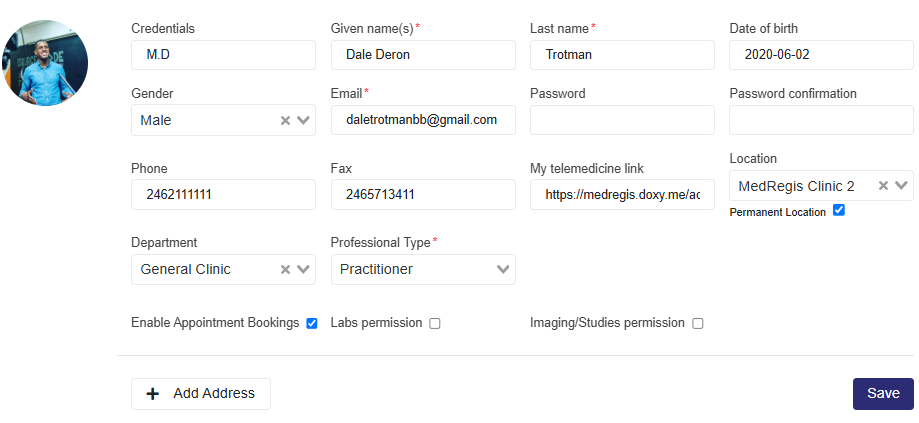
  1. Clinic Admin Plus users must navigate to the Professionals page.
  2. Search for the professional and click the pencil icon to open the Edit Professional page.
  3. Select the Enable Appointment Bookings checkbox.

Set Your Appointment Schedule

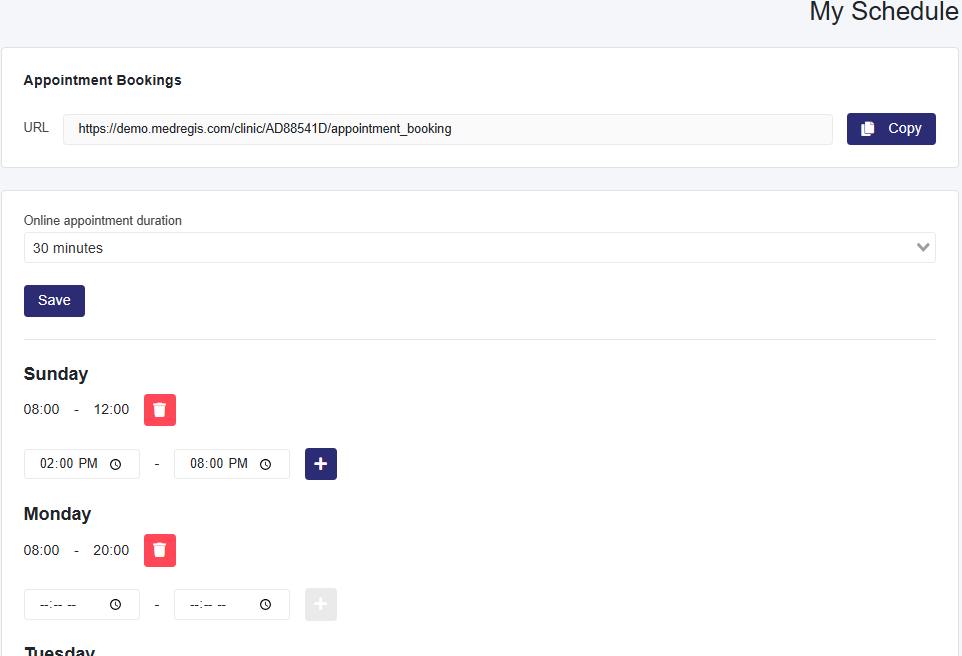
  1. Select the picture placeholder next to your name and job description, then choose My Schedule.
  2. Use the Appointment Bookings link at the top of the page to share your booking link or to place it on your social media or website.
  3. Select your appointment duration periods in the Online appointment duration dropdown box.
  4. For each day, set your schedule:
    • Enter the working period and click the + button to add it for each working day.
    • Repeat for multiple shifts or break periods within a day.

Absence Periods

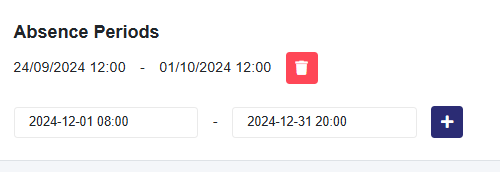
  • Enter periods you’ll be unavailable to prevent bookings during vacations or leave.


Scroll to Top