Table of Contents
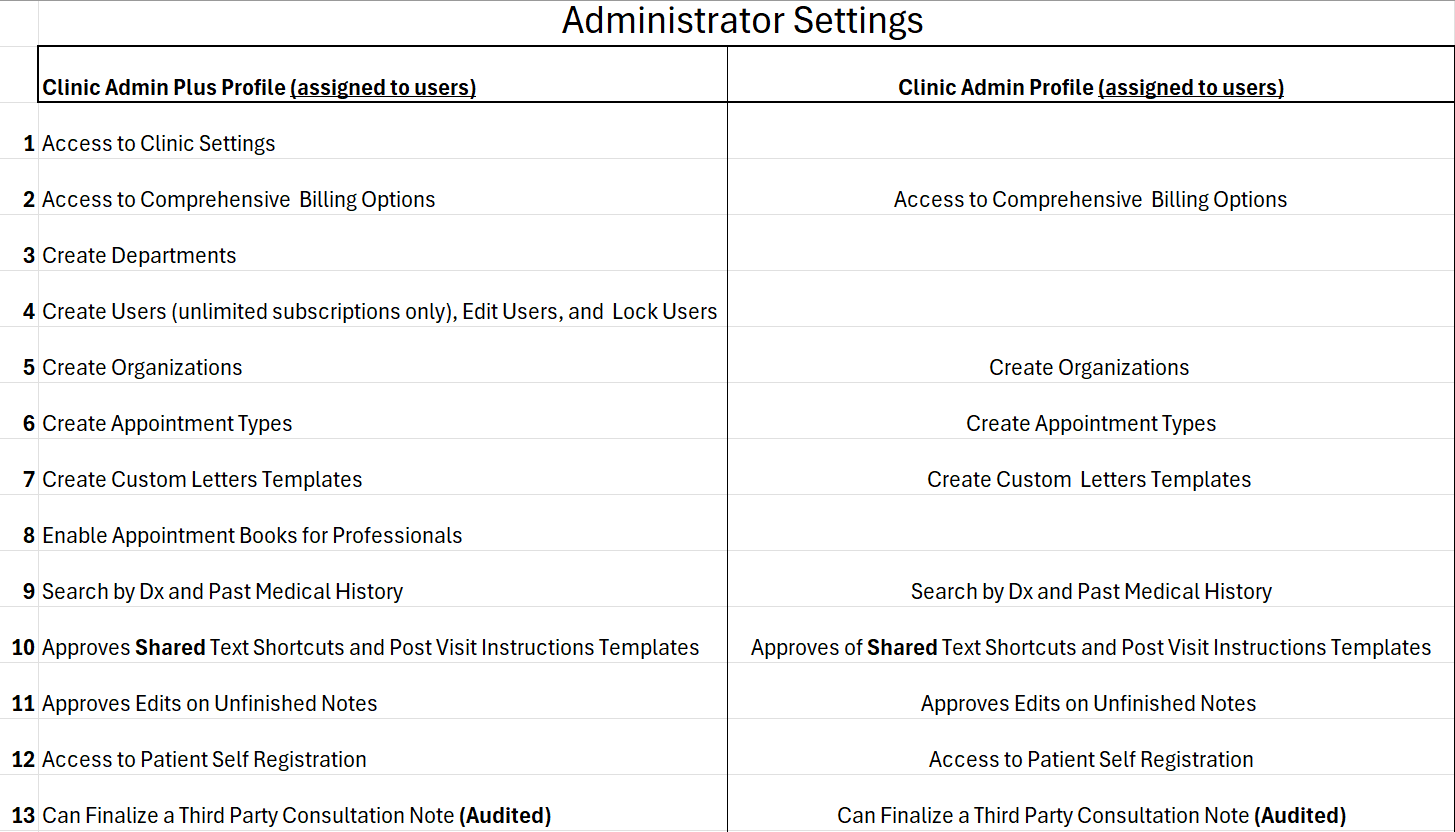
Admin Features
There are two types of admins.
Clinic Admin- Usually, this will be a senior, usually a supervisor. Still, you can assign these privileges to any user. Still, depending on their user type (doctor vs. receptionist), it will dictate what they can do, especially as it relates to medical.
Clinic Admin Plus- Usually, this is the clinic owner. Still, you can assign these privileges to any user. Still, depending on their user type (doctor vs. receptionist), it will dictate what they can do, especially as it relates to medical.
Quick Documentation
- The [ ] quick documentation feature works for sections where templates can be created that also utilize Rich Text Fields:
-
- Consultation Notes
- Post Visit Instructions (Clinic Admin or Admin Plus)
- Referral Letter (Summary section only)
- Custom Letter
You can visit this link to learn more about this quick documentation feature.
Sections that let you create dropdown items
The following dropdowns allow you to create items that are not in their respective dropdowns. All you need to do is start typing what you want to enter that is not in the dropdown. The sections this applies to are:
- Medications (Prescriptions, Administered Medications, and Past/Current Medications)
- Procedures

Which dropdowns let users create medications?
Medications can be created in the drop-downs in many places. These are
- Pricing and Taxes: When creating pricing for a medication, when you select the dropdown and the medication is not there, start typing it out.
- Prescriptions, Administered Medications, and also Past/Current Medications: Patient Medical Profile (accessed from selecting the patient from the Patients Page) or within the Consultation note Subjective (Past/ Current Medications) and Plan (Prescriptions and Administered Medications).
Custom Letter (email)
When creating a custom letter (email), at the bottom, you can choose between:
Send Text As: Attached PDF (the message created in the email body is sent as a PDF) will automatically include your clinic name in the default email body message.
Send Text As: Email Body (the message is seen in the email body by the receiver); include your contact information in the email body. For faster documentation, add it to every template, or save a contact template to use when you need to add contact information in your message.

Consultation Notes Must Knows
- If a note is not discharged, it stays open for 48 hours.
- After 48 hours, it saves to the Unfinished section, which is for unfinished notes.
- If an unfinished note is unlocked, the user has 24 hours before it is finalized.
- Amended notes are for notes that are finalized (Discharged or an unfinished note that was unlocked and finalized)
Allergies
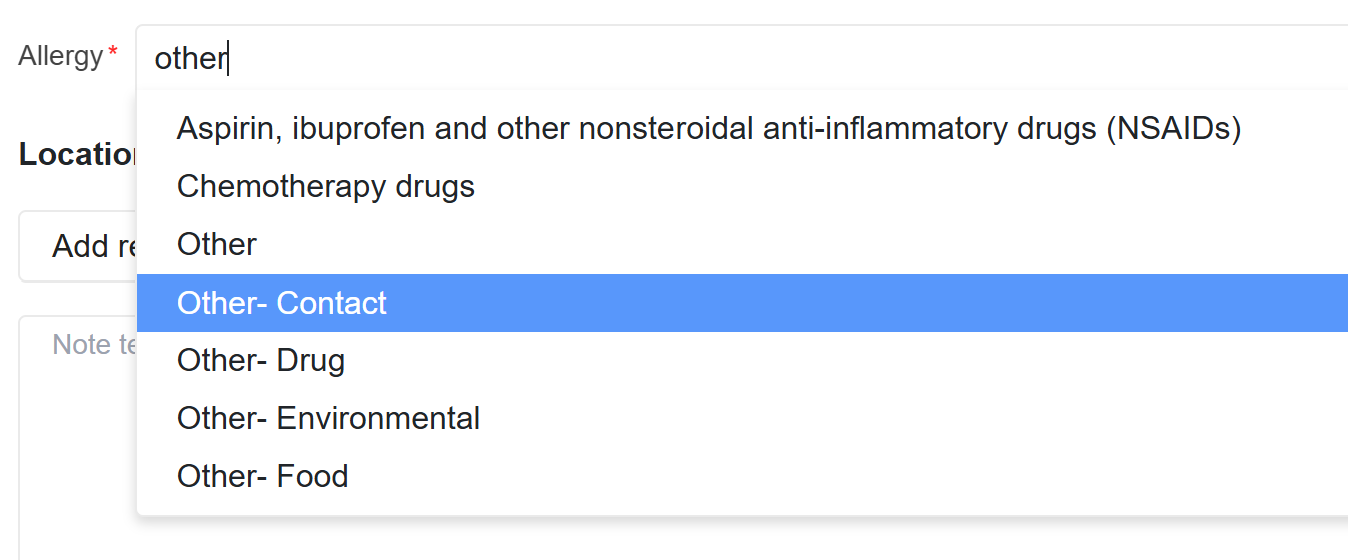
If an Allergy is not in the list, 5 options are available in the dropdown.
- Other
- Other- Contact
- Other- Drug
- Other- Environment
- Other Food
If it is a drug, food, contact, or environmental allergy, select the related 'Other' option and enter the name of the allergy in the provided text field. This is especially important if you want a drug allergy to highlight as an alert.
Assessment vs Assessment Extras
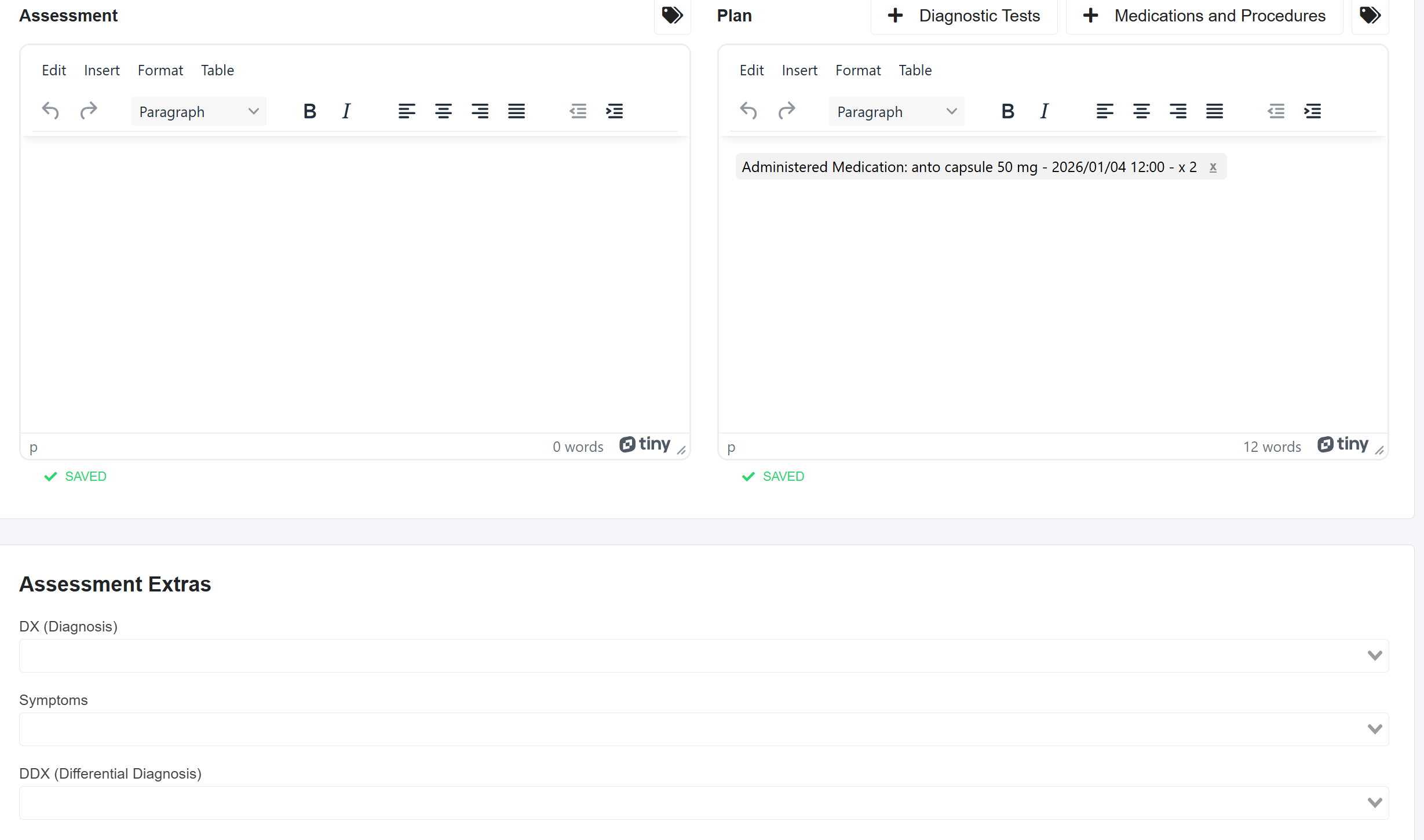
Assessment- This is where you will enter text or use the text shortcuts. When you enter information here or create a text shortcut for assessments, bear in mind that the Assessment Extras section allows you to enter ICD-10 Diagnoses, Differential Diagnoses, and Symptoms, so you may want to enter other related Assessment information here.
Assessment Extra- here utilises ICD-10 to save Diagnoses, Symptoms, and Differential Diagnoses, which will also be saved separately as part of the patient's medical profile.
Medical History and Text Shortcut Relationship
Medical History- These or 9 (10 for females) were where medical professionals could save medical history that would also be saved separately on the patient's medical profile
- Users can utilise the @ trigger for quick documentation of medical history in the Subjective section of the Consultation Note
Text Shortcut- These are templates created by clinic users and can be shared for use within the clinic or department. These templates help you quickly document the consultation note instead of typing it out word-for-word.
- Use the [ ] quick documentation feature when creating text shortcuts, so when you select them, you can document quickly.
ADVICE
When you create a template, do not include Medical History, as it should be saved separately so the information is also saved in the patient's medical profile for easy viewing outside of an appointment or in the Patient Timeline.
Visit this link to learn more about these quick documentation features.
Administered Medications and In-House Prescriptions Medications Dropdown List
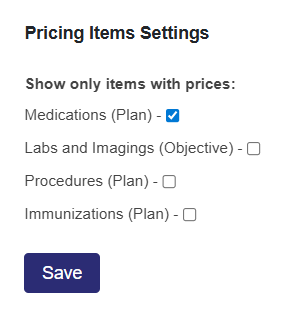
In the Clinic Settings (Clinic Admin Plus can access), medications are preselected by default in the Pricing Items Setting section.
What does this mean for?
Consultation Notes: For users to see medications in the Administered Medications section, and when creating an In-House Prescription for their pharmacy, the medication must be priced. The logic is that you can only administer or prescribe in-house medicines that are actually in the clinic, and those medications will be priced as they are sold to the patient.
Patient Medical Profile ( accessed outside of an appointment from the Patient Page): The dropdown list for In-House Prescriptions will only show what is priced; however, Administered Medications will show the complete list here, as scenarios can occur where the patient brought their own medications, and you may not just want to enter it as part of the note but also want it within the patient medical profile.