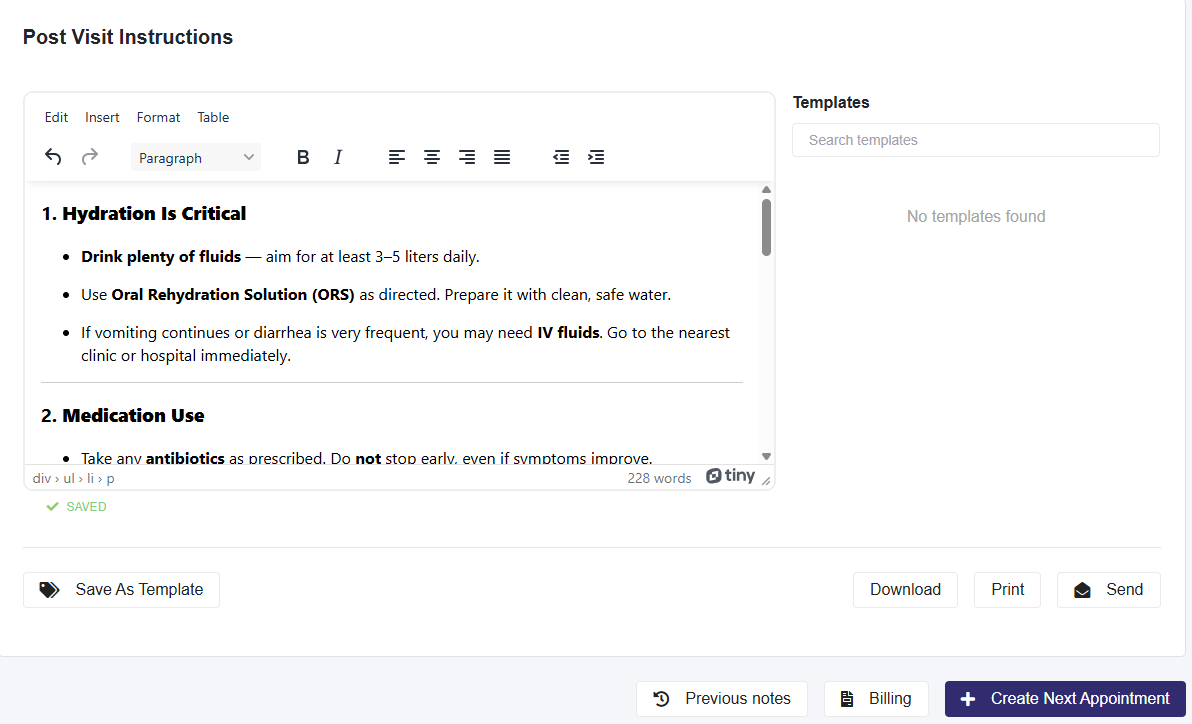
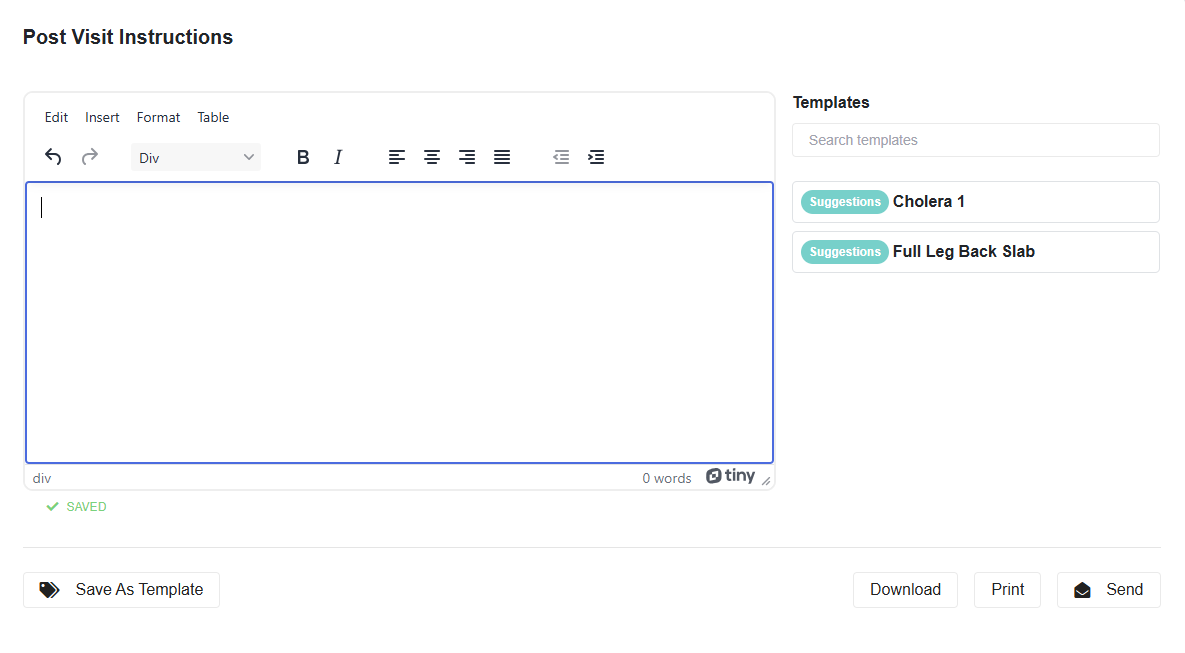
- Create the Instructions you want to send to the patient in the provided textbox and Send, Print, or Download OR
- (Optional) When finished, select Save As Template; this action will open a new tab.
- Enter the template's name in this pop-up and make any required edits.
- Make any changes in the textbox.
- Add a Subject tag to the template. This allows the system to auto-suggest based on a Diagnosis or Procedure associated with the Instructions saved when selecting an Instruction.
- Set the Department you want to assign it to and Save.
- By default, it is set to All Departments.
- A Clinic Admin or Admin Plus can approve the template, making it searchable.
Please Note: You can also create post-visit instructions from the top right-hand corner dropdown menu. For more details on this topic, refer to this article.