
Table of Contents
Explanations
Phases
The Add Phase button adds another step in the regimen—each with its own dose, frequency, and duration—so tapers or schedule changes live inside one prescription.
Phases run in order unless you set a start date, and they print/send together as a single, clear plan.
Creating a Prescription from Consultation Note
- Navigate to the Plan section of the consultation note.
- Select the + Medications and Procedures, then select Prescriptions.
- Select the Pharmacy for the prescription.
- In-House- The prescription will be sent to your pharmacy within your clinic.
- Please note: Only medications that are priced will be in the dropdown for in-house prescriptions.
- External - This creates the prescription for a third-party pharmacy, which you would need to print or send digitally using an agreed medium for that pharmacy.
- In-House- The prescription will be sent to your pharmacy within your clinic.
- The Medication list lets you select the medication you are adding to the prescription.
- Select Add Medication

Determine the Frequency (Time Per)
5. Times Per tells you how many doses are in a time period
-
- Select the amount (e.g, 2 pills), times per period, and duration
- (Optional) Select the Pro re nata PRN (as needed) check box and enter Max per period
- (Optional) Start Date of this medication
- Enter Repeats, check if Substitutes are allowed, and enter any Notes in the related texbox
- Add another Phase if required
- Press Back when finished, and this adds to the Prescription
- Repeat to add additional medications to the Prescription
- Enter the amount
- Add any Directions you want the patient and pharmacy to follow
- If Substitutions are allowed, select the checkbox
- To add another Medication, select Add medications
- Select the Add button

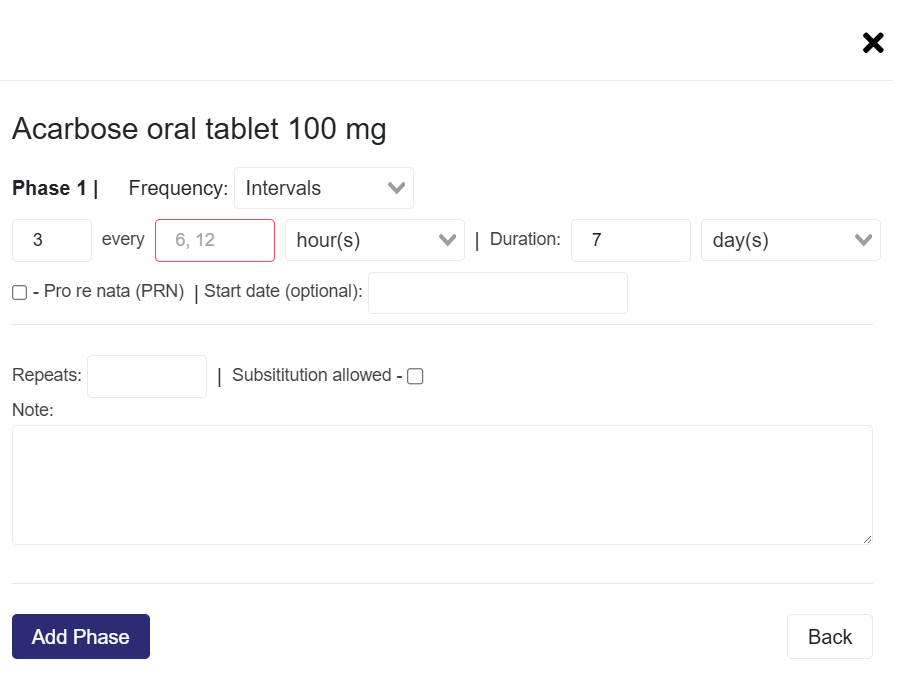
Determine the Frequency (Intervals)
6. Intervals tell you the gap between doses
-
- Select the amount to be taken every interval and set the duration
- (Optional) Select the Pro re nata PRN (as needed) check box and enter Max per period
- (Optional) Start Date of this medication
- Enter Repeats, check if Substitutes are allowed, and enter any Notes in the related texbox
- Add another Phase if required
- Press Back when finished, and this adds to the Prescription
- Repeat to add additional medications to the Prescription
- Enter the amount
- Add any Directions you want the patient and pharmacy to follow
- If Substitutions are allowed, select the checkbox
- To add another Medication, select Add medications
- Select the Add button
Recreate a Previous Prescription
If patients usually have the same or similar prescriptions, you can recreate that entire prescription and make edits instead of creating that prescription from scratch
- Select the Previous prescription dropdown.
- Search for the prescription, select it, and click the Duplicate button.
- Make any necessary edits, then select the Finalize Prescription button.